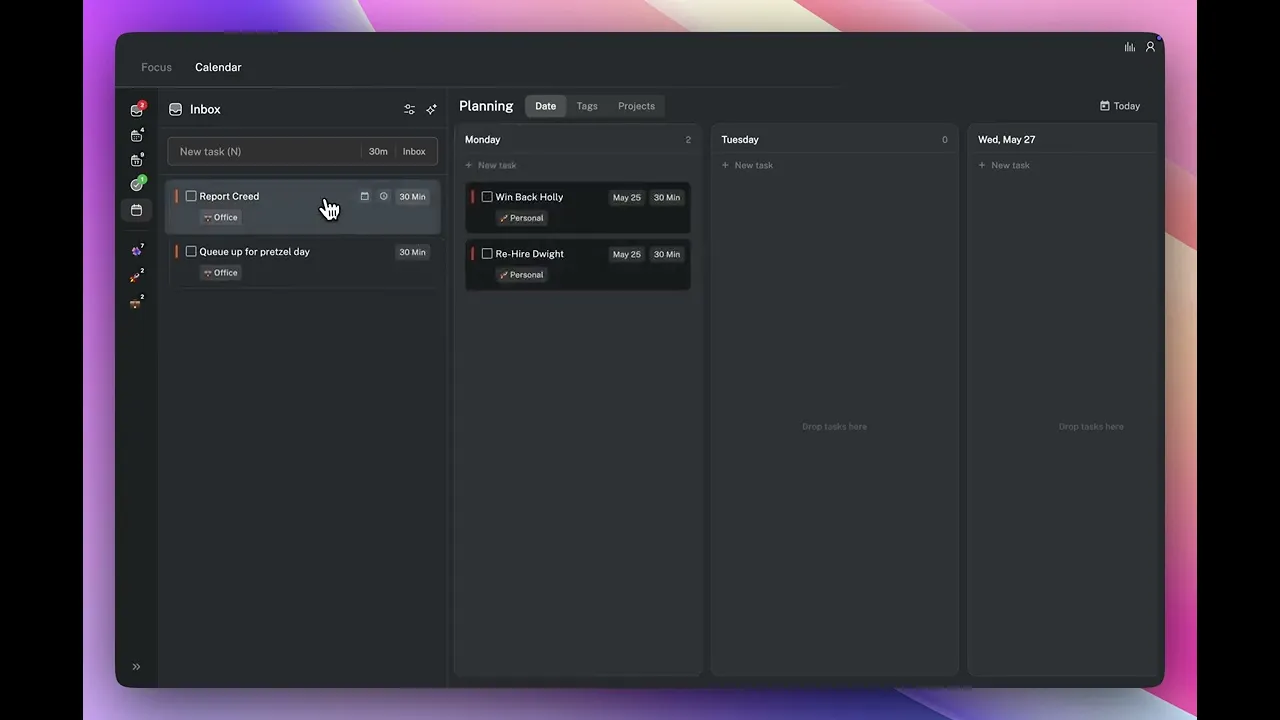
How to use the Planning view (5) to see all your tasks at once, move them between projects and days, and set up your week before scheduling anything.
Written By: Haroon Ahmad
1 min read
What We'll Cover
How to open the Planning view
The three view modes: Date, Projects, and Tags
What appears on each task card
Dragging tasks between columns
When to use the Planning view vs the Calendar view
The Planning view shows all your tasks as cards organised into columns. It's designed for bulk organisation, use it to see the full picture across projects or days at once, and to move tasks between columns.
How to open the Planning view
Press 5 from the Calendar view to open it, or click Planning in the left sidebar.
Three view modes
Date — one column per day, with tasks ordered by scheduled date. Use this during weekly planning to see how tasks are distributed across the week and make quick amendments.
Projects — one column per project, with tasks as cards. Use this to see how full each workstream is.
Tags — one column per tag. Use this to sweep tasks by status — for example, finding everything tagged Waiting For in one view.
Task cards
Each card shows the task title, duration, tags, and the project it belongs to.
Moving tasks
Drag a card from one column to another to reassign its project, date, or tag depending on which view mode you are in. You can also drag tasks from the sidebar on the left directly into a column.
When to use the Planning view vs the Calendar view
Use the Calendar view for daily decisions about what to work on today. Use the Planning view at the start of your weekly planning session to check project health before you start scheduling.
👉 Try it now — Press 5 and switch to Projects view. If any column has significantly more tasks than the others, that is where your next planning session should focus.
The Planning view shows all your tasks as cards organised into columns. It's designed for bulk organisation, use it to see the full picture across projects or days at once, and to move tasks between columns.
How to open the Planning view
Press 5 from the Calendar view to open it, or click Planning in the left sidebar.
Three view modes
Date — one column per day, with tasks ordered by scheduled date. Use this during weekly planning to see how tasks are distributed across the week and make quick amendments.
Projects — one column per project, with tasks as cards. Use this to see how full each workstream is.
Tags — one column per tag. Use this to sweep tasks by status — for example, finding everything tagged Waiting For in one view.
Task cards
Each card shows the task title, duration, tags, and the project it belongs to.
Moving tasks
Drag a card from one column to another to reassign its project, date, or tag depending on which view mode you are in. You can also drag tasks from the sidebar on the left directly into a column.
When to use the Planning view vs the Calendar view
Use the Calendar view for daily decisions about what to work on today. Use the Planning view at the start of your weekly planning session to check project health before you start scheduling.
👉 Try it now — Press 5 and switch to Projects view. If any column has significantly more tasks than the others, that is where your next planning session should focus.