How to attach markdown notes to any task in Aftertone so the context, links and details you need are always right where the work is.
Written By: Niall Jawad
1 min read
What We'll Cover
How to add notes to a task from the calendar
Using the formatting toolbar for bold, lists, and links
How notes appear inside Focus Mode
Opening the notes panel in Focus Mode
Task Notes let you attach markdown notes to any task in Aftertone. Use them to store the brief, the links, the spec, or any context the task needs — so when you open it in Focus Mode, everything is already there and you can start immediately.
How to add a note to a task
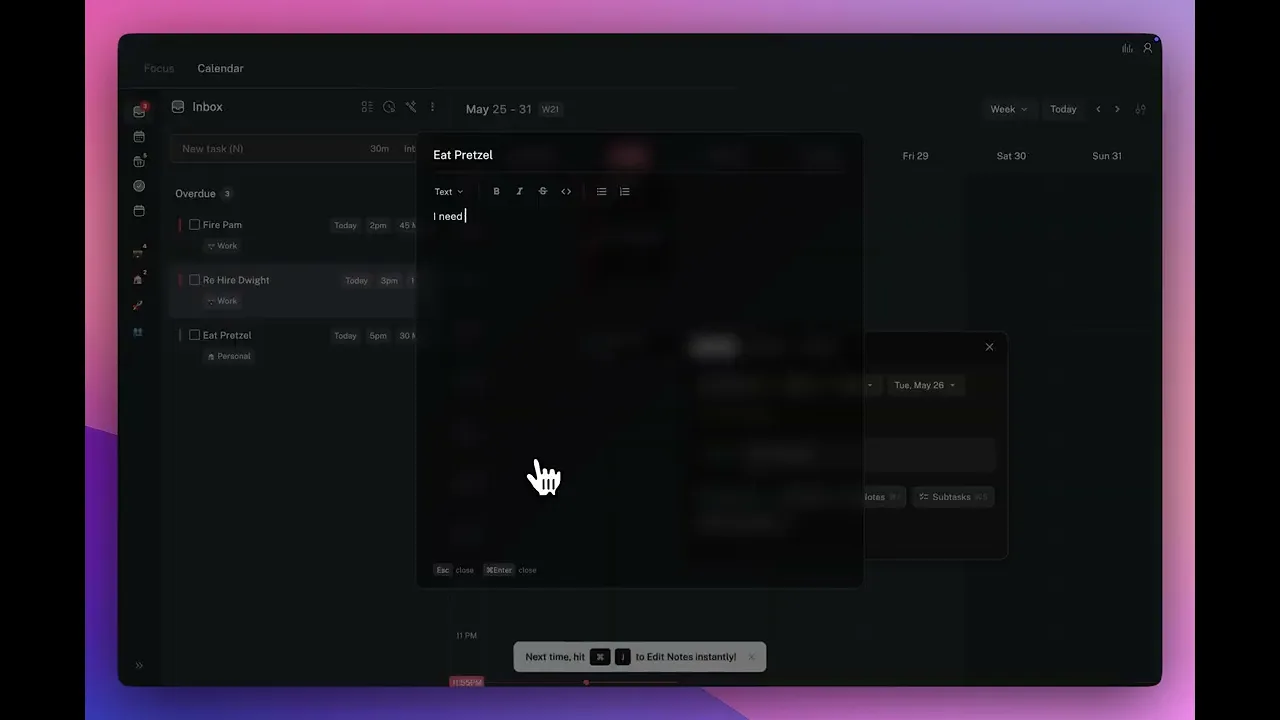
Click on any task in the Calendar view or the inbox. A detail panel opens. Click the Notes field to start writing. Notes support markdown, so you can use headers, bullet points, numbered lists, bold text, and links.
Notes basics
In the toolbar, select one of the following options to format your content.
Press the Text dropdown to select between different sized headings.
Press B to make it bold.
Press I to make it italic.
Press S to make it strikethrough. (This S applies inside the notes editor only — pressing S on a task in the inbox or calendar opens the schedule time picker.)
Press the Code Icon to turn it into a code block.
Press the Bullets icons to either create bullet points or numbered bullets.
What to put in task notes
Put anything you would otherwise need to track down before starting: the doc link, the brief, the spec, the key question. Add it before you schedule the task so you can start immediately when the time comes.
Viewing notes in Focus Mode
When you are in Focus Mode working on a task, open the notes panel by pressing Cmd+J or clicking the Notes icon. The notes appear alongside the task without taking you out of Focus Mode.
👉 Try it now — Find a task you have scheduled for this week and add a note to it — the link, the brief, or the one thing you need to know before you start. You will thank yourself when you open it in Focus Mode.
Task Notes let you attach markdown notes to any task in Aftertone. Use them to store the brief, the links, the spec, or any context the task needs — so when you open it in Focus Mode, everything is already there and you can start immediately.
How to add a note to a task
Click on any task in the Calendar view or the inbox. A detail panel opens. Click the Notes field to start writing. Notes support markdown, so you can use headers, bullet points, numbered lists, bold text, and links.
Notes basics
In the toolbar, select one of the following options to format your content.
Press the Text dropdown to select between different sized headings.
Press B to make it bold.
Press I to make it italic.
Press S to make it strikethrough. (This S applies inside the notes editor only — pressing S on a task in the inbox or calendar opens the schedule time picker.)
Press the Code Icon to turn it into a code block.
Press the Bullets icons to either create bullet points or numbered bullets.
What to put in task notes
Put anything you would otherwise need to track down before starting: the doc link, the brief, the spec, the key question. Add it before you schedule the task so you can start immediately when the time comes.
Viewing notes in Focus Mode
When you are in Focus Mode working on a task, open the notes panel by pressing Cmd+J or clicking the Notes icon. The notes appear alongside the task without taking you out of Focus Mode.
👉 Try it now — Find a task you have scheduled for this week and add a note to it — the link, the brief, or the one thing you need to know before you start. You will thank yourself when you open it in Focus Mode.