The difference between a task and a slot in Aftertone — what each one is, when to use which, and how they behave in Focus Mode.
Written By: Niall Jawad
2 min read
What We'll Cover
What a task is and every field available
What a slot is and when to use one
How tasks appear in Focus Mode and how slots do not
Practical slot names to use
When you add something to your calendar in Aftertone, you have two options: task or slot. They look similar but behave differently.
Tasks
A task is work you are committing to complete. It has a title, a time block, and optionally a project, tags, notes, and subtasks. Tasks appear in your inbox until you give them a time block, and they show up in your weekly report as completed work. When you are in Focus Mode, Aftertone sequences through your tasks in order — one at a time, with your full attention on each one.
Use tasks for anything you are personally responsible for doing: writing, building, reviewing, calling, preparing. If it is work that requires your focused effort and you want it tracked in your weekly report, it is a task.
Slots
A slot is protected time with no specific task attached. Use it to block time for a category of work — deep work, admin, email processing, thinking time — without committing to a specific task in advance. Slots appear on your calendar and in Google Calendar, so others can see your time is taken.
Which one to use
Work you are doing yourself that requires focus and should show in your weekly report: task
Protected time for a category of work where the specific task is decided in the moment: slot
A meeting, call, or appointment: event — see the Events article
How to create tasks
Three options:
Universal Capture - press Command Twice from anywhere, type your task and press Enter
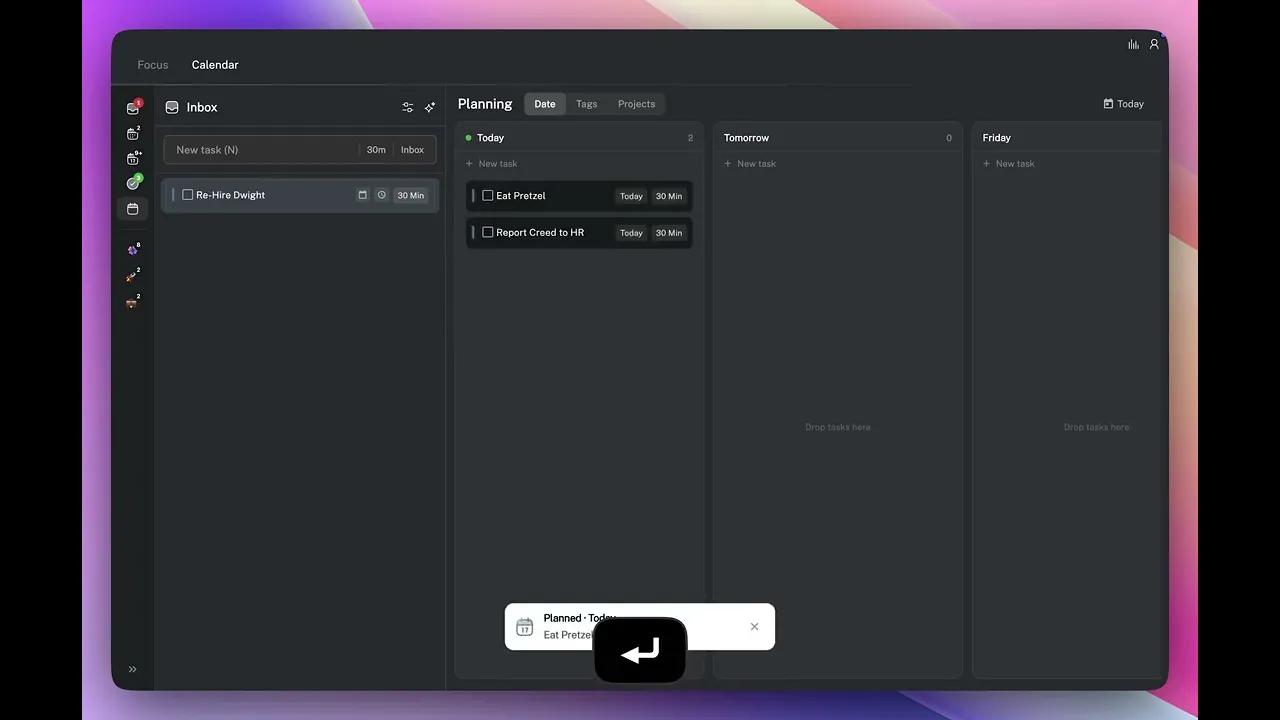
Inbox or Today view - when either panel is active, press N, type the task name, then press Enter
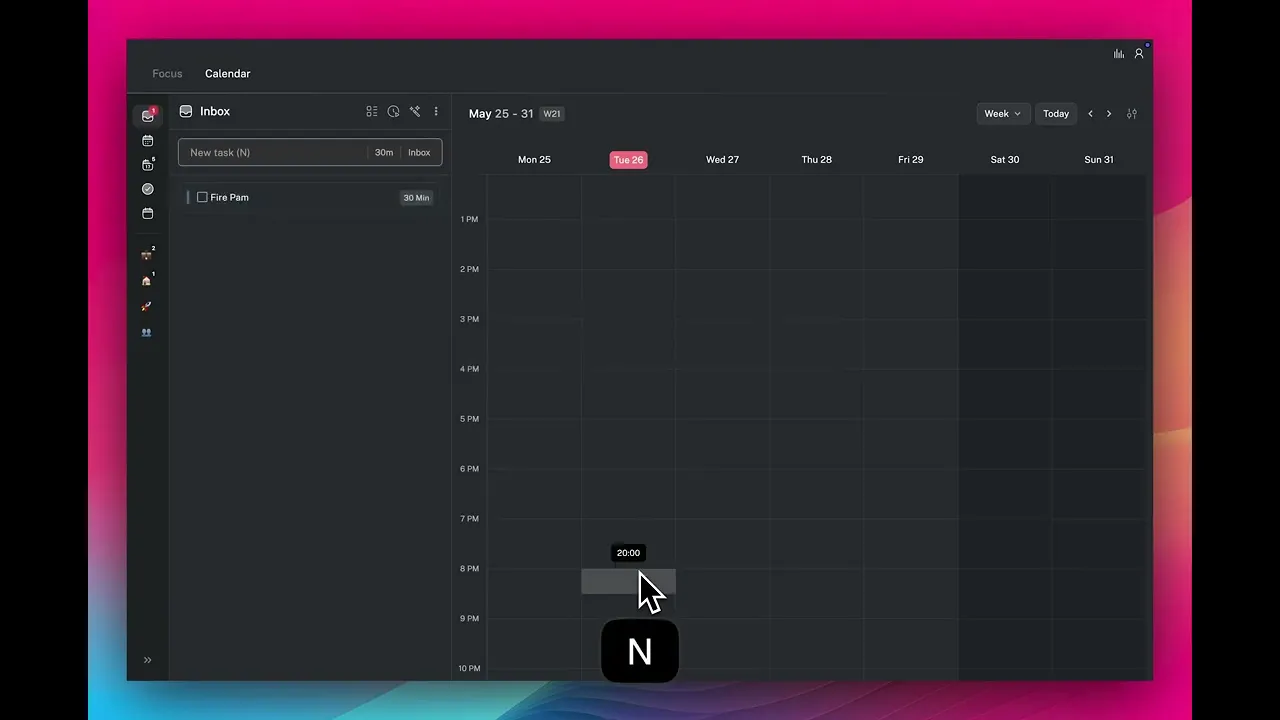
Calendar view - press on a time slot on the calendar, type the task name and pressEnter
Every field on a task
When you create or open a task, you can set: title, project, tags, notes, subtasks, date, start time, duration. Ordering is handled by position in the sidebar and by how you arrange blocks on the calendar.
How to plan tasks
When you have multiple tasks in your Inbox or Today view, you can navigate through them with the ↑ ↓ keys. To clear your inbox, you'll need to Plan your tasks with P to schedule it for Today or a future date.
To reorder tasks by priority, press Cmd+Up to move a task higher in the list or Cmd+Down to move it lower. This works in both the Inbox and Today panels. The order you set here is the order Focus Mode will work through your tasks.
Setting a time block
Three ways to give a task a specific time:
Drag it from the inbox onto the calendar
Hover over a task and press S to schedule it immediately or for suggested times
Smart zoning by pressing Shift + Right when hovered over a task. You can then press up and down or Cmd up/Cmd down to shift the time or lengthen/shorten the task. Press Enter when you're ready to lock it in.
How tasks and slots behave in Focus Mode
If a task or slot has been scheduled for the current time, you'll see it active on the Focus view. To complete actions such as completing a task, extending, taking a break, then press / to open the actions menu. You can also right-click any task in the inbox or on the calendar to open the contextual menu. If no task or slot is scheduled, Aftertone surfaces tasks from your inbox and Today list and asks if you want to start one. Press 1, 2 or 3 to pick a task, or cycle through suggestions with ← →.
When you add something to your calendar in Aftertone, you have two options: task or slot. They look similar but behave differently.
Tasks
A task is work you are committing to complete. It has a title, a time block, and optionally a project, tags, notes, and subtasks. Tasks appear in your inbox until you give them a time block, and they show up in your weekly report as completed work. When you are in Focus Mode, Aftertone sequences through your tasks in order — one at a time, with your full attention on each one.
Use tasks for anything you are personally responsible for doing: writing, building, reviewing, calling, preparing. If it is work that requires your focused effort and you want it tracked in your weekly report, it is a task.
Slots
A slot is protected time with no specific task attached. Use it to block time for a category of work — deep work, admin, email processing, thinking time — without committing to a specific task in advance. Slots appear on your calendar and in Google Calendar, so others can see your time is taken.
Which one to use
Work you are doing yourself that requires focus and should show in your weekly report: task
Protected time for a category of work where the specific task is decided in the moment: slot
A meeting, call, or appointment: event — see the Events article
How to create tasks
Three options:
Universal Capture - press Command Twice from anywhere, type your task and press Enter
Inbox or Today view - when either panel is active, press N, type the task name, then press Enter
Calendar view - press on a time slot on the calendar, type the task name and pressEnter
Every field on a task
When you create or open a task, you can set: title, project, tags, notes, subtasks, date, start time, duration. Ordering is handled by position in the sidebar and by how you arrange blocks on the calendar.
How to plan tasks
When you have multiple tasks in your Inbox or Today view, you can navigate through them with the ↑ ↓ keys. To clear your inbox, you'll need to Plan your tasks with P to schedule it for Today or a future date.
To reorder tasks by priority, press Cmd+Up to move a task higher in the list or Cmd+Down to move it lower. This works in both the Inbox and Today panels. The order you set here is the order Focus Mode will work through your tasks.
Setting a time block
Three ways to give a task a specific time:
Drag it from the inbox onto the calendar
Hover over a task and press S to schedule it immediately or for suggested times
Smart zoning by pressing Shift + Right when hovered over a task. You can then press up and down or Cmd up/Cmd down to shift the time or lengthen/shorten the task. Press Enter when you're ready to lock it in.
How tasks and slots behave in Focus Mode
If a task or slot has been scheduled for the current time, you'll see it active on the Focus view. To complete actions such as completing a task, extending, taking a break, then press / to open the actions menu. You can also right-click any task in the inbox or on the calendar to open the contextual menu. If no task or slot is scheduled, Aftertone surfaces tasks from your inbox and Today list and asks if you want to start one. Press 1, 2 or 3 to pick a task, or cycle through suggestions with ← →.