How Auto Capture and Auto Project Tagging work together to turn raw text into structured, organised tasks automatically.
Written By: Niall Jawad
2 min read
What We'll Cover
How Auto Capture extracts tasks from any text or screenshot
How extracted tasks land directly in your inbox
How Auto Project Tagging assigns tasks to the right project
How to correct a tag and improve accuracy over time
Writing project descriptions for better tagging
Auto Capture
Auto Capture reads a block of text - meeting notes, a long email, a project brief - and extracts structured tasks from it automatically. Instead of creating tasks one by one, you paste the text or take a screenshot and Aftertone generates a list of structured tasks ready to review and add to your inbox.
How to use it
Copy the text you want to extract tasks from.
Open Universal Capture with Double Command and press Cmd+I, or click the Auto Capture button.
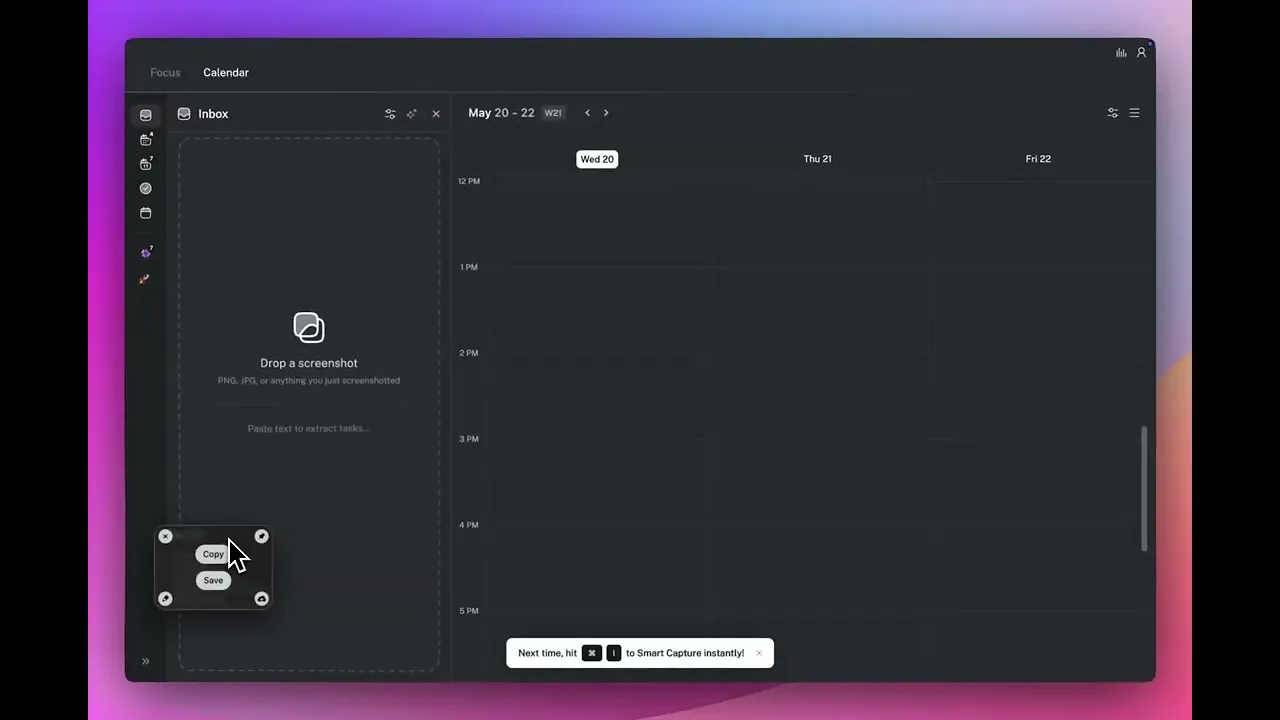
Paste the text into the capture panel or take a screenshot with Command + Shift + 4 to capture a selection to clipboard, then drag it into the window and then press Enter.
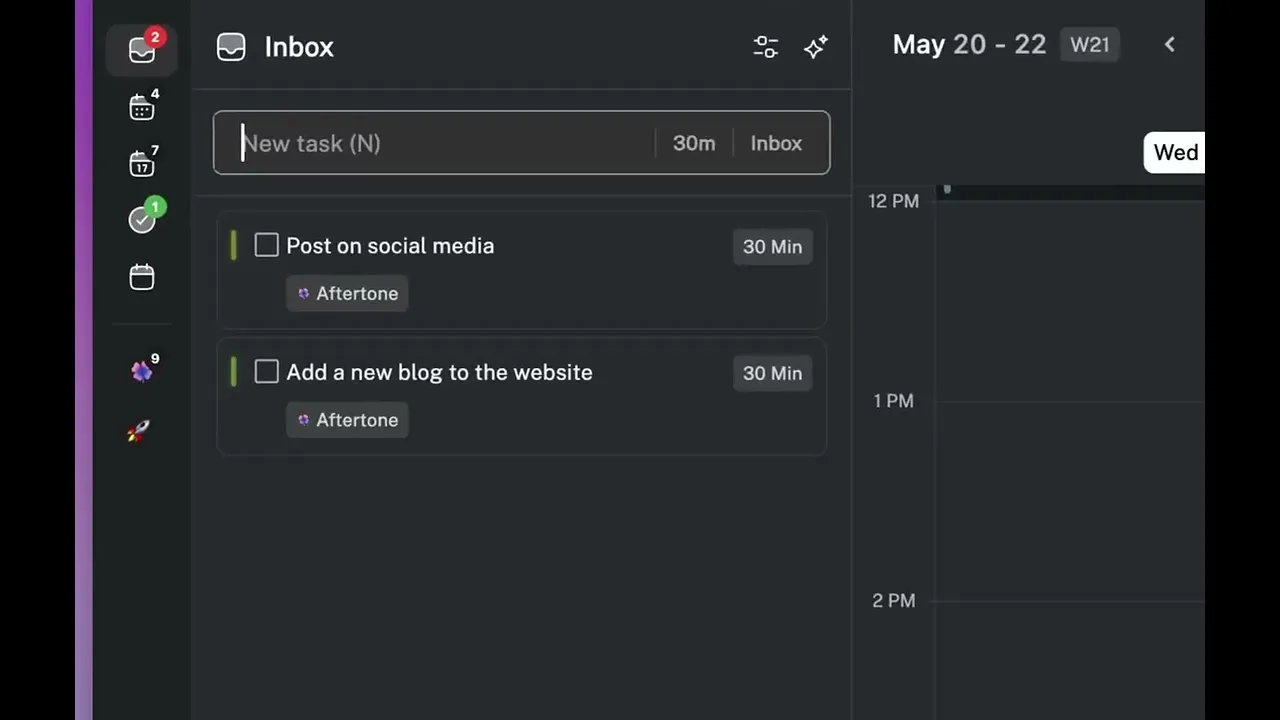
Aftertone extracts and outputs your tasks directly into your inbox.
What the AI extracts
Aftertone looks for action items, commitments, and deliverables in the text. It ignores context and background that is not actionable. Each suggested task gets a title and, where the text makes it clear, a suggested project and due date.
Auto Project Tagging
When a new task lands in your inbox — whether captured manually or via Auto Capture — Aftertone compares it against your existing projects and past tagging history, then assigns the project it thinks is most likely. In most cases it gets it right without you doing anything.
Correcting a tag
Click the project label on any task in the inbox. A dropdown shows your full project list. Select the correct project. Aftertone learns from each correction and becomes more accurate over time. Most users find it reliable enough to leave alone after 10 to 14 days.
Writing better project descriptions
The description you give a project directly affects tagging accuracy. A specific description gives the AI something to match against: "Product design and UI/UX work for the Aftertone app" is specific enough to catch relevant tasks. "Design" is too vague and leads to mismatches. Edit project descriptions in the sidebar → Projects settings.
💡 Tip — Keep your project count between 5 and 8. More than 10 projects noticeably reduces tagging accuracy.
👉 Try it now — Find a long email or set of meeting notes, open Universal Capture with Double Command, press Cmd+I, copy your text or drag in a screenshot and then press Enter.
Auto Capture
Auto Capture reads a block of text - meeting notes, a long email, a project brief - and extracts structured tasks from it automatically. Instead of creating tasks one by one, you paste the text or take a screenshot and Aftertone generates a list of structured tasks ready to review and add to your inbox.
How to use it
Copy the text you want to extract tasks from.
Open Universal Capture with Double Command and press Cmd+I, or click the Auto Capture button.
Paste the text into the capture panel or take a screenshot with Command + Shift + 4 to capture a selection to clipboard, then drag it into the window and then press Enter.
Aftertone extracts and outputs your tasks directly into your inbox.
What the AI extracts
Aftertone looks for action items, commitments, and deliverables in the text. It ignores context and background that is not actionable. Each suggested task gets a title and, where the text makes it clear, a suggested project and due date.
Auto Project Tagging
When a new task lands in your inbox — whether captured manually or via Auto Capture — Aftertone compares it against your existing projects and past tagging history, then assigns the project it thinks is most likely. In most cases it gets it right without you doing anything.
Correcting a tag
Click the project label on any task in the inbox. A dropdown shows your full project list. Select the correct project. Aftertone learns from each correction and becomes more accurate over time. Most users find it reliable enough to leave alone after 10 to 14 days.
Writing better project descriptions
The description you give a project directly affects tagging accuracy. A specific description gives the AI something to match against: "Product design and UI/UX work for the Aftertone app" is specific enough to catch relevant tasks. "Design" is too vague and leads to mismatches. Edit project descriptions in the sidebar → Projects settings.
💡 Tip — Keep your project count between 5 and 8. More than 10 projects noticeably reduces tagging accuracy.
👉 Try it now — Find a long email or set of meeting notes, open Universal Capture with Double Command, press Cmd+I, copy your text or drag in a screenshot and then press Enter.