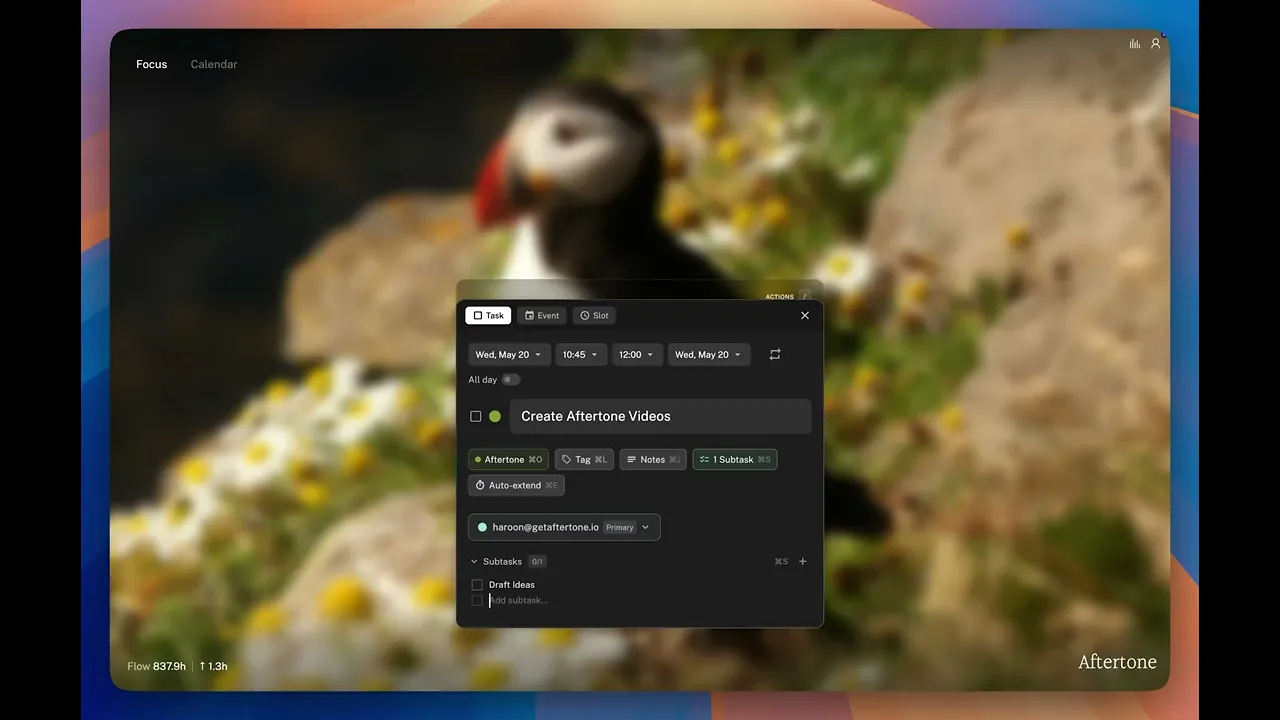
How Focus Mode works, what you see on screen, and why showing you one task at a time changes the way you get through your day.
Written By: Niall Jawad
2 min read
What We'll Cover
How to enter Focus Mode with Tab
What you see on screen and how the background blur works
Completing a task with Enter vs Cmd+Enter
Auto-Extend, breaks, and overdue task handling
Leaving and re-entering Focus Mode
What Focus Mode shows when nothing is scheduled
Focus Mode shows you one task at a time with everything else removed from the screen. Press Tab from the Calendar view to enter it. Aftertone takes you directly to the task scheduled for the current time block.
What you see
The task title, the time block duration, and the project label. If subtasks have been added, they appear as a checklist below the title. Everything else is removed. The background blurs until the task is complete.
The core shortcuts
Five shortcuts cover about 90 percent of what you do in Focus Mode. Learn these first: Tab to enter Focus Mode, E to complete a task, Cmd+S to add a subtask, + to extend the session, B to take a break.
The / actions menu and right-click
Press / to open the contextual menu, or right-click anywhere on the Focus screen. Press Escape to close it without taking any action. The menu is context-aware — it shows the relevant actions for whatever is currently on screen. Use it while you are learning; once the shortcuts are in muscle memory you will rarely need to open it.
E — Complete task. Marks it done and moves to the next scheduled task.
Cmd+E — Complete Now. Marks done and trims the block to the exact current time.
Cmd+S — Add subtask. Opens an inline input field below the task title.
+ — Extend session. Adds 15 minutes to the current block and updates Google Calendar immediately.
- — Shorten session. Removes 15 minutes from the current block.
A — Auto-Extend toggle. When on, the session extends automatically in 15-minute increments instead of stopping at block end.
Pause — Pauses the timer and returns you to the Calendar view. Press Tab to resume.
B — Take a break. Opens a duration picker, adds a break block to your calendar, and resumes Focus Mode when it ends.
Enter — Edit task. Opens the task title and fields for editing without leaving the screen.
Backspace — Delete task. Permanently removes the task.
Completing a task
Press E to complete the task — the block is recorded at its full planned duration. Press Cmd+E instead to complete and cut the block to the exact current time, which keeps your calendar accurate when you finish early. Aftertone then immediately surfaces the next task from your schedule.
Working through subtasks
Press Cmd+S to add a subtask, Enter to save it, Escape to close the input. Once subtasks are visible, use the Up and Down arrow keys to move between them. Press Enter to check off the selected subtask. When all subtasks are checked, the parent task completes automatically.
Google Calendar updates automatically
As you work through tasks in Focus Mode, your Calendar updates in real time. If you extend a session, the block grows. Anyone looking at your calendar sees an accurate picture of your day without you doing anything manually.
Overdue tasks
If a task runs past its scheduled block, an overdue tag appears on the screen. You can respond directly — choose to auto-extend, mark it complete as-is, or add a fixed amount of time. You do not need to go back to the Calendar view to resolve it.
When nothing is scheduled
If nothing is scheduled for the current time, Aftertone surfaces tasks from your inbox and Today list and asks if you want to start one. Pick one by pressing 1, 2 or 3 or cycle through other tasks with ← →. Once selected, your next chosen task begins immediately.
Leaving and re-entering Focus Mode
Press Tab to return to the Calendar view — useful when something urgent comes in or you want to check what is coming up later. Press Tab to go back in. Aftertone returns you to the task you were on.
👉 Try it now — Press Tab right now. Work through one task in Focus Mode without touching the mouse. Use E to complete it, + if you need more time, B if you need a break.
Focus Mode shows you one task at a time with everything else removed from the screen. Press Tab from the Calendar view to enter it. Aftertone takes you directly to the task scheduled for the current time block.
What you see
The task title, the time block duration, and the project label. If subtasks have been added, they appear as a checklist below the title. Everything else is removed. The background blurs until the task is complete.
The core shortcuts
Five shortcuts cover about 90 percent of what you do in Focus Mode. Learn these first: Tab to enter Focus Mode, E to complete a task, Cmd+S to add a subtask, + to extend the session, B to take a break.
The / actions menu and right-click
Press / to open the contextual menu, or right-click anywhere on the Focus screen. Press Escape to close it without taking any action. The menu is context-aware — it shows the relevant actions for whatever is currently on screen. Use it while you are learning; once the shortcuts are in muscle memory you will rarely need to open it.
E — Complete task. Marks it done and moves to the next scheduled task.
Cmd+E — Complete Now. Marks done and trims the block to the exact current time.
Cmd+S — Add subtask. Opens an inline input field below the task title.
+ — Extend session. Adds 15 minutes to the current block and updates Google Calendar immediately.
- — Shorten session. Removes 15 minutes from the current block.
A — Auto-Extend toggle. When on, the session extends automatically in 15-minute increments instead of stopping at block end.
Pause — Pauses the timer and returns you to the Calendar view. Press Tab to resume.
B — Take a break. Opens a duration picker, adds a break block to your calendar, and resumes Focus Mode when it ends.
Enter — Edit task. Opens the task title and fields for editing without leaving the screen.
Backspace — Delete task. Permanently removes the task.
Completing a task
Press E to complete the task — the block is recorded at its full planned duration. Press Cmd+E instead to complete and cut the block to the exact current time, which keeps your calendar accurate when you finish early. Aftertone then immediately surfaces the next task from your schedule.
Working through subtasks
Press Cmd+S to add a subtask, Enter to save it, Escape to close the input. Once subtasks are visible, use the Up and Down arrow keys to move between them. Press Enter to check off the selected subtask. When all subtasks are checked, the parent task completes automatically.
Google Calendar updates automatically
As you work through tasks in Focus Mode, your Calendar updates in real time. If you extend a session, the block grows. Anyone looking at your calendar sees an accurate picture of your day without you doing anything manually.
Overdue tasks
If a task runs past its scheduled block, an overdue tag appears on the screen. You can respond directly — choose to auto-extend, mark it complete as-is, or add a fixed amount of time. You do not need to go back to the Calendar view to resolve it.
When nothing is scheduled
If nothing is scheduled for the current time, Aftertone surfaces tasks from your inbox and Today list and asks if you want to start one. Pick one by pressing 1, 2 or 3 or cycle through other tasks with ← →. Once selected, your next chosen task begins immediately.
Leaving and re-entering Focus Mode
Press Tab to return to the Calendar view — useful when something urgent comes in or you want to check what is coming up later. Press Tab to go back in. Aftertone returns you to the task you were on.
👉 Try it now — Press Tab right now. Work through one task in Focus Mode without touching the mouse. Use E to complete it, + if you need more time, B if you need a break.