How to move tasks from your sidebar directly onto the calendar and position them precisely using only the keyboard.
Written By: Niall Jawad
1 min read
What We'll Cover
How to move a task from the sidebar onto the calendar with a single shortcut
How to position the block across the day using arrow keys
How to move a task to a different day
How to adjust the duration of the block without touching the mouse
When to use Smart Zoning vs dragging
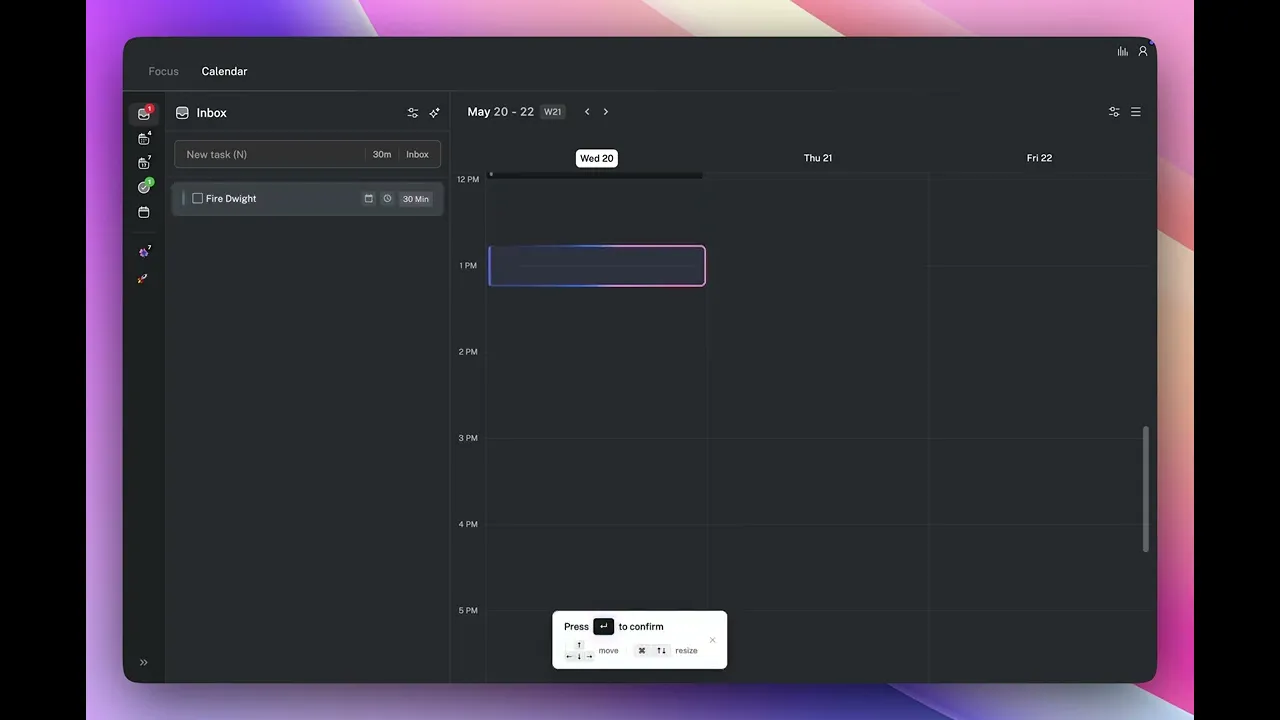
Smart Zoning lets you place a task onto your calendar and position it precisely without touching the mouse. Select a task in your inbox or Today list, press Shift+Right, and the task moves directly onto the calendar as a time block. From there, arrow keys handle everything — where in the day, which day, and how long.
How to activate Smart Zoning
Select any task in your inbox or Today panel. Press Shift+Right. The task moves from the sidebar onto the calendar as a time block, positioned at the earliest available slot in your current day.
Moving the block across the day
Once the block is on the calendar, use Up and Down arrow keys to move it earlier or later in the day. Each press shifts the block by the calendar's current time increment. Keep pressing until the block sits exactly where you want it.
Moving the block to a different day
Press Right or Left to move the block forward or back by one day. This works the same way as moving within a day — press once per day you want to shift it. Combine with Up and Down to land the block on exactly the right day and time.
Adjusting the duration
Press Cmd+Down to make the block longer or Cmd+Up to make it shorter. Each press adjusts the duration in increments. Press Enter when the block is the right length and in the right place — the block is confirmed and your Google Calendar updates immediately.
The full keyboard flow
Select a task → Shift+Right to place it → Up / Down to move within the day → Left / Right to change the day → Cmd+Down / Cmd+Up to adjust duration → Enter to confirm.
Press Escape at any point to cancel and return the task to the sidebar.
When to use Smart Zoning
Smart Zoning is fastest when you are working through a list of tasks in your inbox and want to block them quickly without switching between keyboard and mouse. It is particularly useful during your morning planning session — select each task, place it, move on. A full inbox can be cleared to the calendar in under two minutes without reaching for the mouse.
For a task that needs a specific time immediately, press S instead — it opens a time picker and places the block precisely where you choose without the positional navigation. Smart Zoning is best when you want to place and adjust blocks fluidly using the keyboard; S is better when you already know the exact time.
👉 Try it now — Select a task in your inbox, press Shift+Right, use the arrow keys to position it in your first available slot, and press Enter. That is one task blocked without touching the mouse.
Smart Zoning lets you place a task onto your calendar and position it precisely without touching the mouse. Select a task in your inbox or Today list, press Shift+Right, and the task moves directly onto the calendar as a time block. From there, arrow keys handle everything — where in the day, which day, and how long.
How to activate Smart Zoning
Select any task in your inbox or Today panel. Press Shift+Right. The task moves from the sidebar onto the calendar as a time block, positioned at the earliest available slot in your current day.
Moving the block across the day
Once the block is on the calendar, use Up and Down arrow keys to move it earlier or later in the day. Each press shifts the block by the calendar's current time increment. Keep pressing until the block sits exactly where you want it.
Moving the block to a different day
Press Right or Left to move the block forward or back by one day. This works the same way as moving within a day — press once per day you want to shift it. Combine with Up and Down to land the block on exactly the right day and time.
Adjusting the duration
Press Cmd+Down to make the block longer or Cmd+Up to make it shorter. Each press adjusts the duration in increments. Press Enter when the block is the right length and in the right place — the block is confirmed and your Google Calendar updates immediately.
The full keyboard flow
Select a task → Shift+Right to place it → Up / Down to move within the day → Left / Right to change the day → Cmd+Down / Cmd+Up to adjust duration → Enter to confirm.
Press Escape at any point to cancel and return the task to the sidebar.
When to use Smart Zoning
Smart Zoning is fastest when you are working through a list of tasks in your inbox and want to block them quickly without switching between keyboard and mouse. It is particularly useful during your morning planning session — select each task, place it, move on. A full inbox can be cleared to the calendar in under two minutes without reaching for the mouse.
For a task that needs a specific time immediately, press S instead — it opens a time picker and places the block precisely where you choose without the positional navigation. Smart Zoning is best when you want to place and adjust blocks fluidly using the keyboard; S is better when you already know the exact time.
👉 Try it now — Select a task in your inbox, press Shift+Right, use the arrow keys to position it in your first available slot, and press Enter. That is one task blocked without touching the mouse.