How to use Double Command to capture a task from anywhere on your Mac without switching apps or breaking your focus.
Written By: Niall Jawad
1 min read
What We'll Cover
How to open Universal Capture from anywhere with Double Command
The buttons available: Schedule Now, Project, Tags, Auto Capture
What happens to captured tasks and where they go
Every element in the Universal Capture window
Scheduling a task at capture time with Schedule Now
The full keyboard flow for a fast capture
Universal Capture lets you add a task to your Aftertone inbox from anywhere on your Mac in under three seconds, without switching apps or breaking your focus. Press Double Command, type the task, press Enter.
How to use it
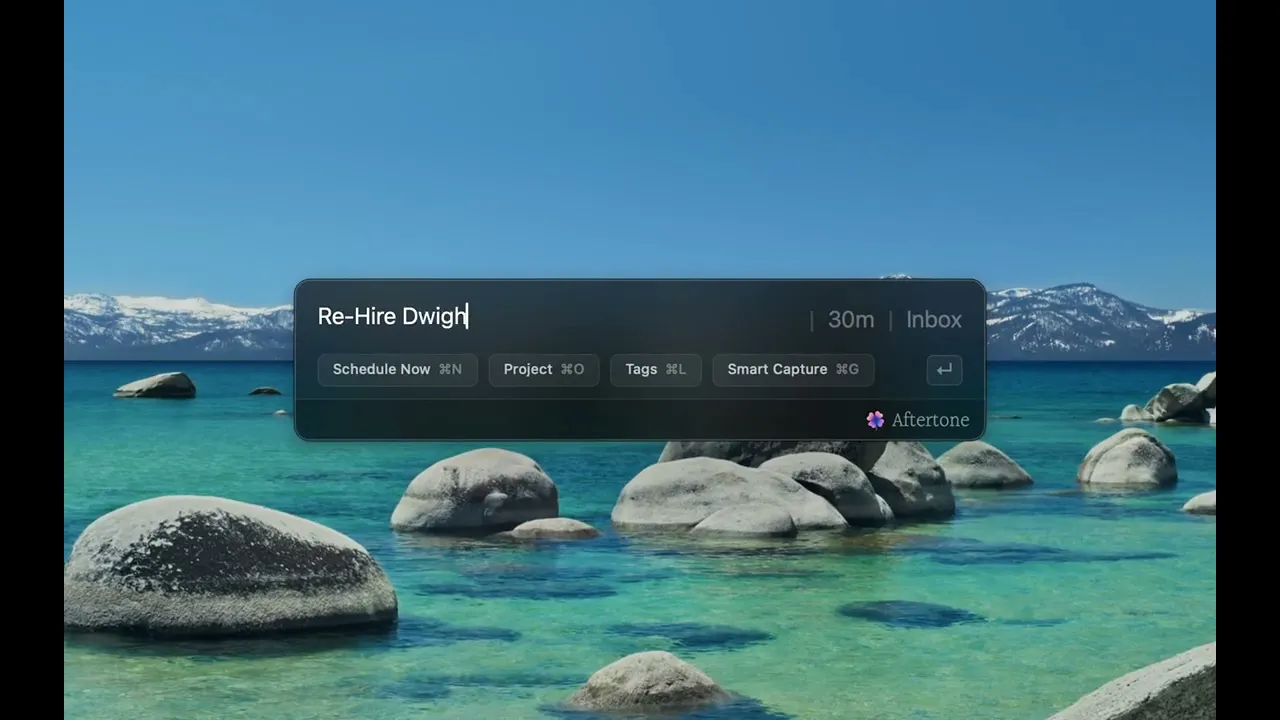
Press Command twice from anywhere on your Mac — Aftertone does not need to be open. A small input window appears. Type the task title and press Enter. The task goes straight into your inbox.
The Universal Capture window
When you press Double Command, a small window appears with:
A text input for the task title
Schedule Now (Cmd+N)— to set a time for the task immediately without returning to the calendar
Project (O) — to assign the task to a project at capture time
Tags (G) — to add a tag
Auto Capture (Cmd+I) — to paste a block of text or screenshot and create multiple structured tasks at once
The full keyboard flow for a tagged capture: Double Command → type title → O (assign project) or G (add tag) or Cmd+N (schedule now) → Enter to submit. Press Escape at any point or click anywhere else on the screen to cancel without saving.
When to use it
Use it whenever something comes to mind mid-meeting, mid-session, or mid-anything. Get it out of your head and into Aftertone in seconds, then carry on.
Where captured tasks go
All Universal Capture tasks land in your inbox unscheduled. From there, select any task and press S to schedule it immediately as a time block — or drag it onto the calendar during your morning planning session.
If the shortcut is not working
⚠️ Note — Universal Capture requires accessibility permissions. Go to System Settings, Privacy and Security, Accessibility and make sure Aftertone is listed and enabled.
👉 Try it now — Press Double Command right now from wherever you are on your Mac. Add one task.
Universal Capture lets you add a task to your Aftertone inbox from anywhere on your Mac in under three seconds, without switching apps or breaking your focus. Press Double Command, type the task, press Enter.
How to use it
Press Command twice from anywhere on your Mac — Aftertone does not need to be open. A small input window appears. Type the task title and press Enter. The task goes straight into your inbox.
The Universal Capture window
When you press Double Command, a small window appears with:
A text input for the task title
Schedule Now (Cmd+N)— to set a time for the task immediately without returning to the calendar
Project (O) — to assign the task to a project at capture time
Tags (G) — to add a tag
Auto Capture (Cmd+I) — to paste a block of text or screenshot and create multiple structured tasks at once
The full keyboard flow for a tagged capture: Double Command → type title → O (assign project) or G (add tag) or Cmd+N (schedule now) → Enter to submit. Press Escape at any point or click anywhere else on the screen to cancel without saving.
When to use it
Use it whenever something comes to mind mid-meeting, mid-session, or mid-anything. Get it out of your head and into Aftertone in seconds, then carry on.
Where captured tasks go
All Universal Capture tasks land in your inbox unscheduled. From there, select any task and press S to schedule it immediately as a time block — or drag it onto the calendar during your morning planning session.
If the shortcut is not working
⚠️ Note — Universal Capture requires accessibility permissions. Go to System Settings, Privacy and Security, Accessibility and make sure Aftertone is listed and enabled.
👉 Try it now — Press Double Command right now from wherever you are on your Mac. Add one task.