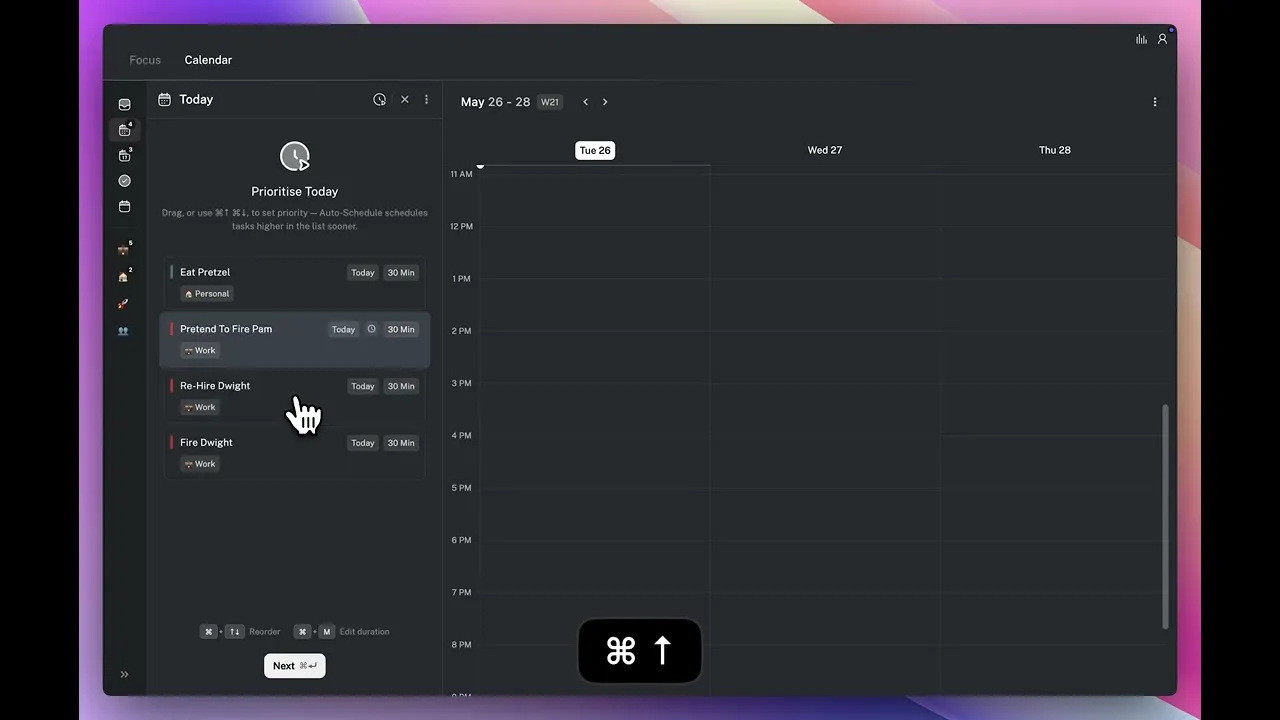
How to use Auto Plan to automatically distribute your inbox tasks across your upcoming days, with priority control and custom constraints.
Written By: Niall Jawad
1 min read
What We'll Cover
How Auto Plan works
How to launch Auto Plan from the inbox
Adjusting task priorities before planning
Setting tasks per day and custom constraints
Auto Plan looks at everything in your inbox and distributes tasks across your upcoming days automatically. It's most useful at the start of a week when you have a backlog of tasks and want to spread them across specific days rather than planning each one manually.
How to launch Auto Plan
Click the Auto Plan button in the top right of the inbox left pane, or press Cmd+P. Aftertone will open the Auto Plan flow.
Step 1: Adjust priorities
Before Aftertone distributes your tasks, it shows you your full inbox and asks if you want to adjust the order. If there's nothing in your inbox, Aftertone will ask you to drop in a screenshot or write tasks that are on your plate and it'll generate them.
Drag tasks up or down, or press Cmd+Up and Cmd+Down to reorder them. The higher a task sits in the list, the higher priority Aftertone treats it as when deciding which day to plan it for.
Step 2: Set tasks per day
Choose how many tasks you want planned per day. Aftertone uses this as a ceiling - it will not exceed your limit on any given day.
Step 3: Add any constraints
An open text field lets you tell Aftertone anything else it should factor in. For example, keep Friday empty, or keep Tuesday light, or nothing on Wednesday afternoon. Aftertone incorporates these instructions alongside your priorities and daily limit when building the plan.
What happens next
Aftertone plans every task in your inbox across your upcoming days, respecting the priority order, the tasks-per-day limit, and any constraints you specified. Tasks land in your Today and Upcoming panels with a planned date assigned - ready to be time-blocked during your morning planning session.
👉 Try it now — Press Cmd+P with a full inbox, drag your most important tasks to the top, and add one constraint like keep Friday light. Aftertone will handle the rest.
Auto Plan looks at everything in your inbox and distributes tasks across your upcoming days automatically. It's most useful at the start of a week when you have a backlog of tasks and want to spread them across specific days rather than planning each one manually.
How to launch Auto Plan
Click the Auto Plan button in the top right of the inbox left pane, or press Cmd+P. Aftertone will open the Auto Plan flow.
Step 1: Adjust priorities
Before Aftertone distributes your tasks, it shows you your full inbox and asks if you want to adjust the order. If there's nothing in your inbox, Aftertone will ask you to drop in a screenshot or write tasks that are on your plate and it'll generate them.
Drag tasks up or down, or press Cmd+Up and Cmd+Down to reorder them. The higher a task sits in the list, the higher priority Aftertone treats it as when deciding which day to plan it for.
Step 2: Set tasks per day
Choose how many tasks you want planned per day. Aftertone uses this as a ceiling - it will not exceed your limit on any given day.
Step 3: Add any constraints
An open text field lets you tell Aftertone anything else it should factor in. For example, keep Friday empty, or keep Tuesday light, or nothing on Wednesday afternoon. Aftertone incorporates these instructions alongside your priorities and daily limit when building the plan.
What happens next
Aftertone plans every task in your inbox across your upcoming days, respecting the priority order, the tasks-per-day limit, and any constraints you specified. Tasks land in your Today and Upcoming panels with a planned date assigned - ready to be time-blocked during your morning planning session.
👉 Try it now — Press Cmd+P with a full inbox, drag your most important tasks to the top, and add one constraint like keep Friday light. Aftertone will handle the rest.