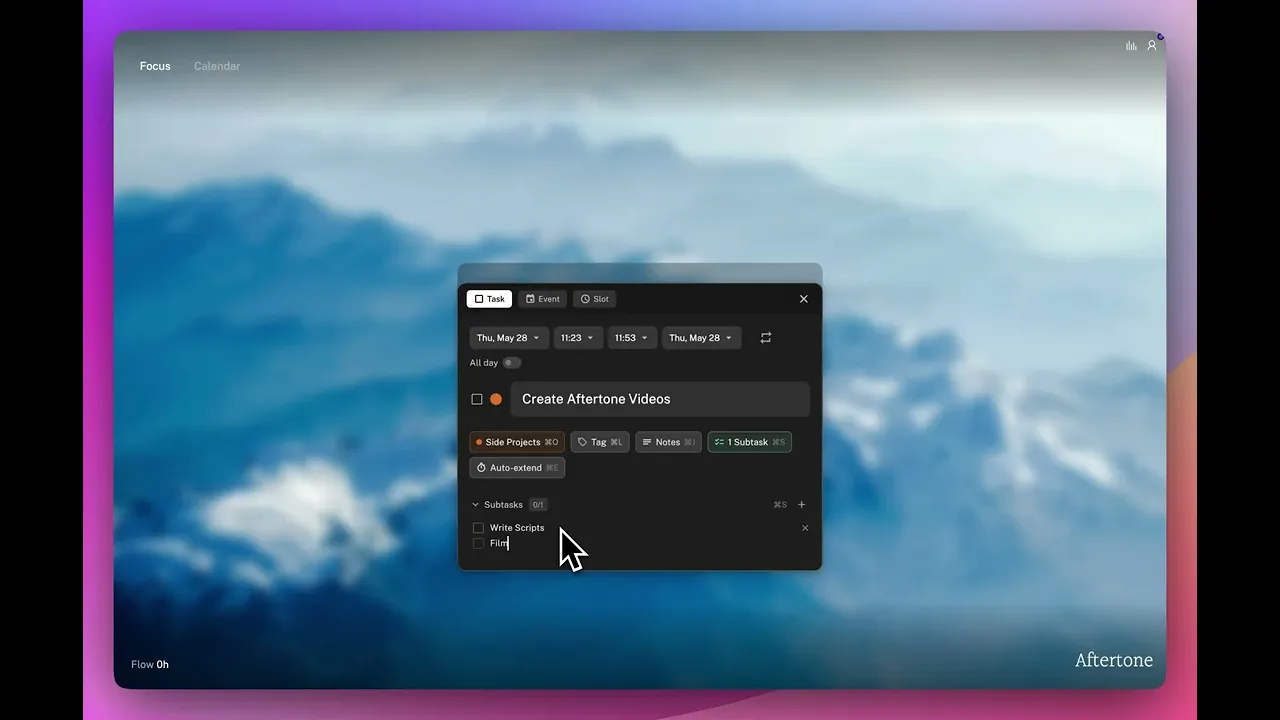
How to add subtasks to a task while you are working on it in Focus Mode, without leaving the screen or losing your train of thought.
Written By: Haroon Ahmad
2 min read
What We'll Cover
How to add subtasks in Focus Mode with S
How to work through a subtask checklist
How subtasks affect your time block
Navigating subtasks with arrow keys
Completing all subtasks completes the parent task
Subtasks let you break down a task while you are already working on it in Focus Mode, without leaving the screen or losing your train of thought.
How to add a subtask in Focus Mode
While in Focus Mode, press Cmd+S. A small input field appears beneath the task. Type the subtask title and press Enter. Add as many as you need, then press Escape to close the input and get back to work.
Working through subtasks
Once added, subtasks appear as a checklist below the main task title in Focus Mode. Use the Up and Down arrow keys to navigate between subtasks. Tick each one off by clicking the checkbox or pressing Enter when it is selected. The main task stays open until all subtasks are complete, or until you manually mark the whole task as done.
When to use subtasks
Use subtasks when a task has clear, distinct steps and you want to help chunk these into smaller, more manageable amounts.
Editing subtasks in the planning view
Any subtasks you add during a session are visible in the task detail panel. You can add, edit or remove subtasks from there at any time.
👉 Try it now — The next time a task grows in scope while you are working on it, press Cmd+S in Focus Mode and add the subtasks before you do anything else. It keeps the work visible and your inbox clean.
Subtasks let you break down a task while you are already working on it in Focus Mode, without leaving the screen or losing your train of thought.
How to add a subtask in Focus Mode
While in Focus Mode, press Cmd+S. A small input field appears beneath the task. Type the subtask title and press Enter. Add as many as you need, then press Escape to close the input and get back to work.
Working through subtasks
Once added, subtasks appear as a checklist below the main task title in Focus Mode. Use the Up and Down arrow keys to navigate between subtasks. Tick each one off by clicking the checkbox or pressing Enter when it is selected. The main task stays open until all subtasks are complete, or until you manually mark the whole task as done.
When to use subtasks
Use subtasks when a task has clear, distinct steps and you want to help chunk these into smaller, more manageable amounts.
Editing subtasks in the planning view
Any subtasks you add during a session are visible in the task detail panel. You can add, edit or remove subtasks from there at any time.
👉 Try it now — The next time a task grows in scope while you are working on it, press Cmd+S in Focus Mode and add the subtasks before you do anything else. It keeps the work visible and your inbox clean.