Best Mac calendar apps 2026: the complete guide.
Every major Mac calendar app tested, compared by what actually matters, with guides for every type of user.

Most Mac calendar apps solve the same problem slightly differently. They take what's already scheduled and display it more attractively than Apple Calendar. Better week view. Cleaner colour coding. Natural language event creation. Some have widgets. Some have menu bar icons.
None of that is wrong. But it's also not the thing worth evaluating when you're deciding which app to trust with your time.
The question that matters is what happens after the events are on the calendar. Does the app help you plan the work that lives between the meetings? Does it protect your attention when a scheduled block arrives? Does it give you any insight into whether the week's structure is actually producing results, or just filling up?
The answer for most Mac calendar apps is no, and that gap is why the category is more interesting than it appears. There are now tools in the Mac calendar space that do all three. This guide covers the full landscape, from pure calendars to productivity systems built around a calendar, with enough detail to work out which one fits your situation.
What separates Mac calendar apps
The meaningful differences fall into four categories. Most reviews treat them as equivalent. They aren't.
Native vs Electron. Mac-native apps (Aftertone, Fantastical, BusyCal, Apple Calendar) use Apple's frameworks throughout. They support Spotlight, widgets, keyboard shortcuts, system notifications, and Shortcuts automations. They feel like they belong. Electron-wrapped apps (Morgen, some others) are web apps packaged for desktop delivery. They work, but keyboard shortcut behaviour is inconsistent, system integrations are limited, and on lower-powered Macs the performance difference is noticeable.
Calendar view vs productivity system. This is the bigger distinction and it runs through the entire category. A calendar app shows your events. A productivity system built on top of a calendar also manages your tasks, protects your focus during scheduled blocks, and analyses how the time is actually being used. Fantastical is the best calendar view on Mac. Aftertone is the clearest example of the second thing. They're answering different questions.
AI depth. Ranges from nothing (Apple Calendar, BusyCal, Fantastical) to scheduling suggestions (Morgen, which can propose slots for tasks based on calendar availability) to behavioural analysis (Aftertone, which reads your calendar history and tells you what patterns are producing your best work). These are very different uses of AI. Scheduling suggestions save you the click of finding an open slot. Behavioural analysis tells you whether your current structure is working and what to change.
Pricing model. The long-run cost differences in this category are large. Apple Calendar is free. BusyCal is a one-time purchase. Fantastical is $54/year. Morgen is up to $180/year. Aftertone is $30/month. Over five years these diverge significantly, and the right comparison isn't just price. It's what the price buys and whether the tool will still exist and be maintained in year three.
The apps.
Aftertone
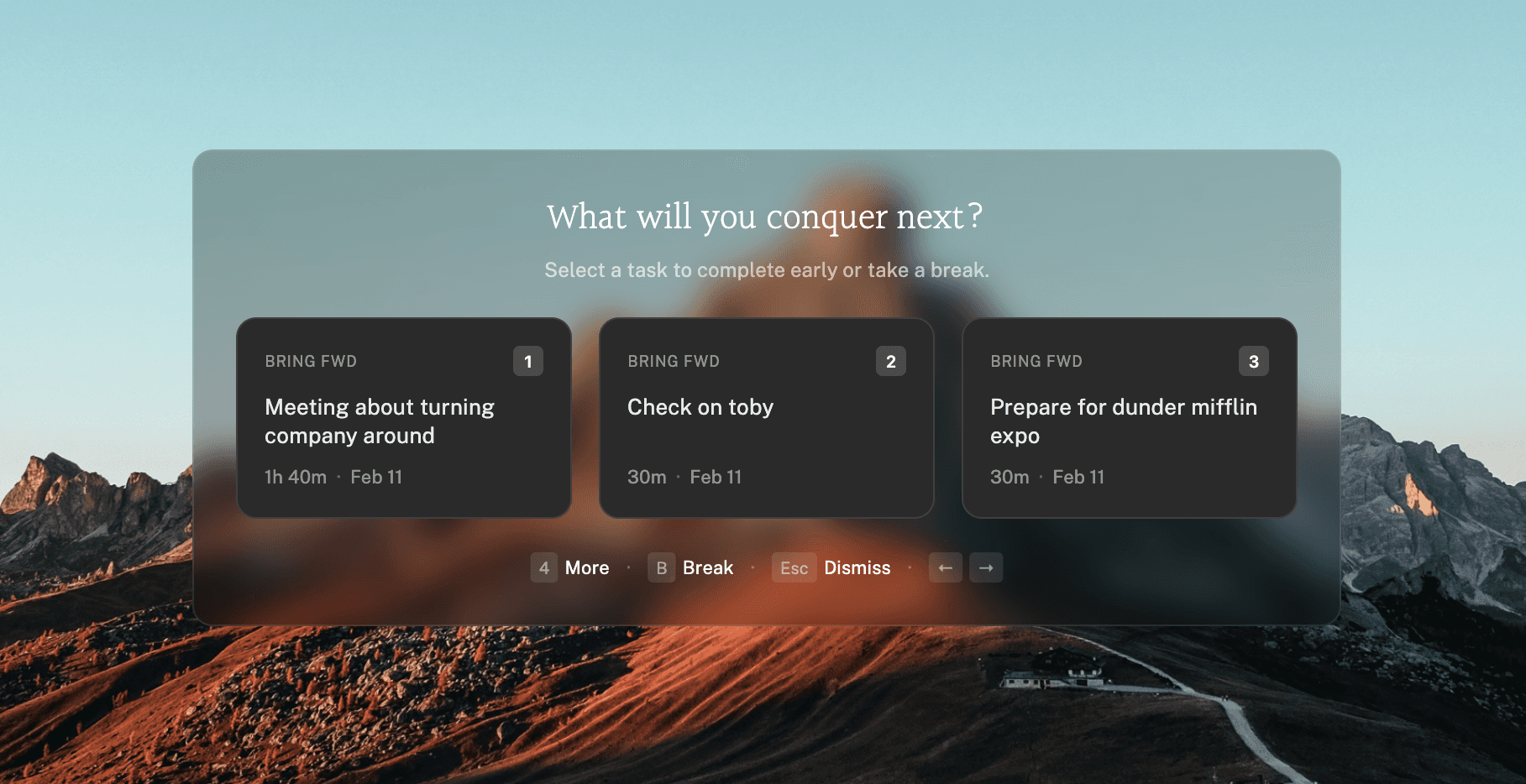
Best for: Mac users who want time blocking, AI feedback, and a focus system in one place.
Aftertone is built around a different premise than the rest of this list. Most calendar apps are passive. They show what's happening and leave everything else to you. Aftertone is active: it manages tasks alongside the calendar, protects focus during scheduled blocks, and analyses the week's structure to tell you what's producing results and what isn't.
The core loop: tasks go into an inbox via Quick Capture (Option+Space from anywhere on the Mac), get time-blocked into the calendar, run through the Focus Screen when the slot arrives, and get reviewed in the weekly and daily AI reports. Smart Zoning uses keyboard shortcuts to block time without touching the mouse. Smart Capture converts pasted text or screenshots into structured tasks. The Focus Screen narrows to one task when a block starts, with Auto-Extend to push the block when you're in flow and Pause to hold your place mid-session.
The weekly and daily reports are the part most calendar apps don't touch. They surface which time slots produced your best focus sessions, how your flow hours trend over weeks, and where the structure is breaking down. The AI never touches the calendar. It reads and reports. You decide what to change.
Mac-only, by design. No Windows, no web access. Two-way Google Calendar sync.
Price: $30/month. 7-day free trial, no card required.
Limitation: Mac-only. If you work across devices or platforms this is a hard constraint. The focus and AI features have no mobile equivalent.
Fantastical
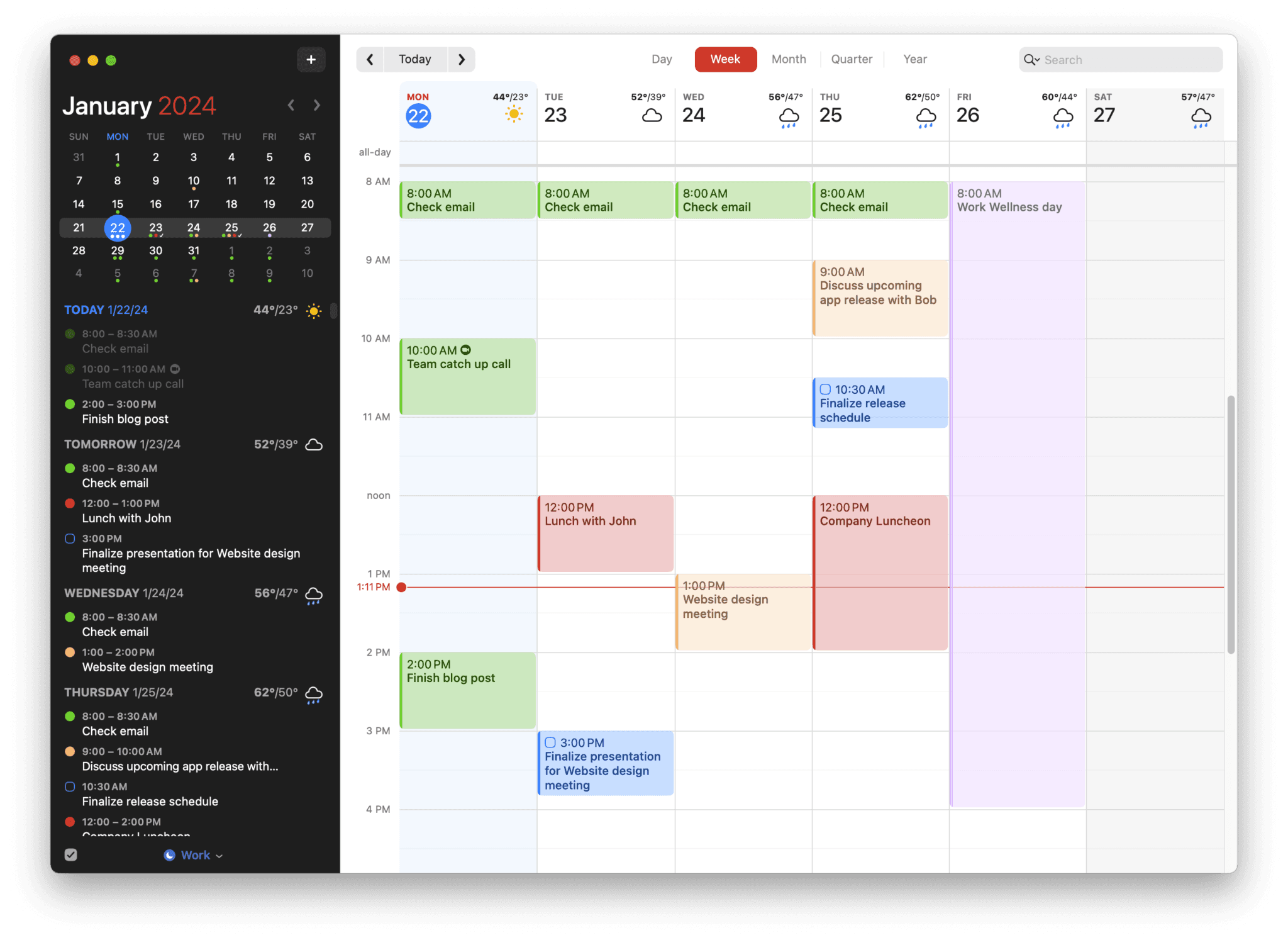
Best for: the best pure calendar experience on Mac, full stop.
Fantastical has been the premium Mac calendar for fifteen years and the 2020 subscription shift didn't change what it does well. Natural language event creation is still the best in the category. "Dentist Tuesday 3pm" creates a correctly formatted event with the right title, time, and calendar. Calendar sets let you toggle between work and personal contexts with one click. The design is considered in ways that accumulate over daily use.
What Fantastical doesn't do: tasks beyond basic reminders, focus protection, AI analysis of any kind, or any insight into how your time is being used. It shows the calendar. It does that better than anyone. If the calendar view is the thing and everything else is handled elsewhere, Fantastical is the right call.
Price: $54/year (billed annually). Limited free tier available.
Limitation: No AI, no task system, no focus tools. Subscription required for anything beyond the basic free view.
Morgen
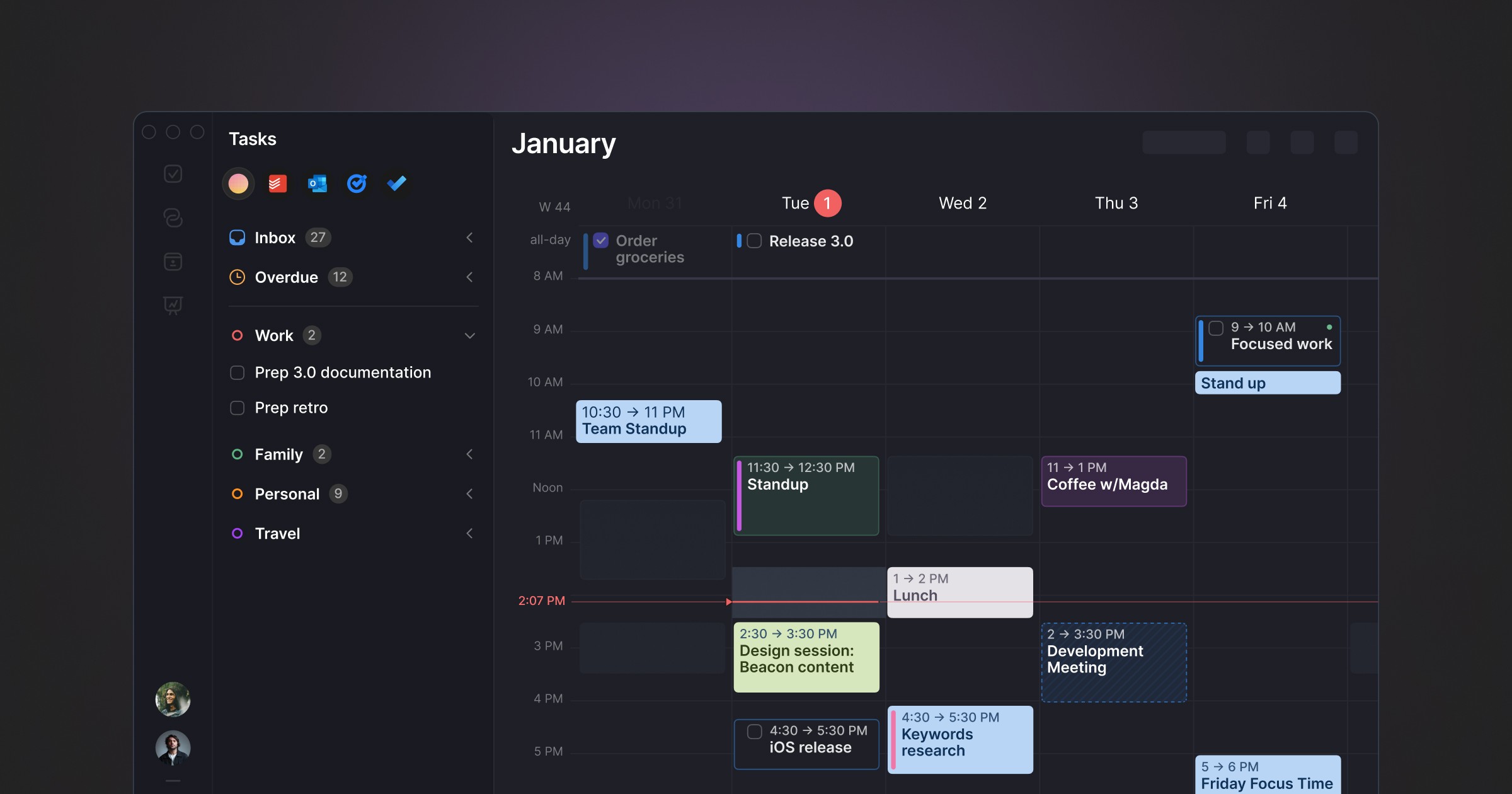
Best for: multi-account calendar management with scheduling suggestions.
Morgen's case is the unified inbox. If you're managing multiple Google Calendars, Outlook accounts, and iCloud simultaneously, the combined view and the ability to move events between accounts without switching apps is genuinely useful. The AI scheduling suggestions (proposing slots for tasks based on calendar availability) reduce the friction of finding time for work alongside meetings.
Electron-based, which matters on Mac. Keyboard shortcut behaviour doesn't always match macOS conventions, and on older hardware the performance gap is noticeable. No focus tools, no behavioural analysis.
Price: Up to $180/year. Free tier available with limited accounts.
Limitation: Electron-based, which limits macOS integration depth. No focus mode, no AI analysis beyond scheduling suggestions.
BusyCal
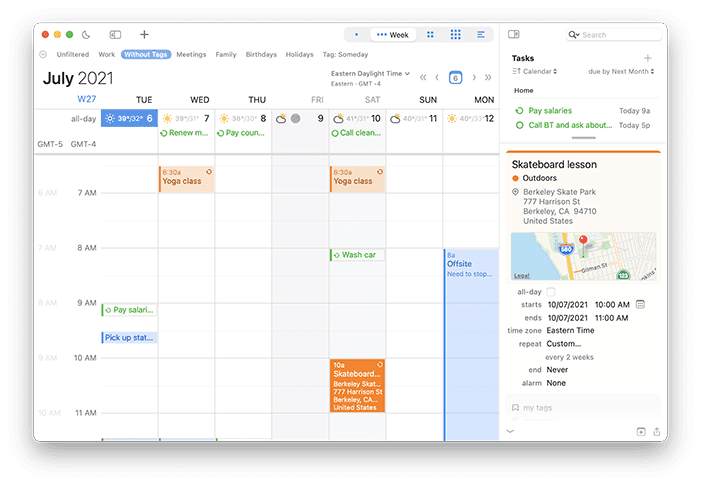
Best for: Mac power users who want deep calendar customisation without a subscription.
BusyCal has been a Mac-native power calendar since 2010 and it shows in the feature depth. CalDAV server support with detailed configuration options, custom list views, travel time calculations, moon phases, health data integration. It solves specific professional requirements that Apple Calendar doesn't touch. If you've ever looked at Apple Calendar and wanted more control over what it shows and how, BusyCal is likely the answer.
No AI, no task system, no focus tools. The app is a sophisticated calendar. That's the trade: depth of calendar function for everything else.
Price: One-time purchase (~$50). Available direct or via the Mac App Store.
Limitation: No AI, no task management, no focus tools. Design language is dense compared to modern alternatives.
Notion Calendar
Best for: Notion users who want their calendar connected to their workspace.
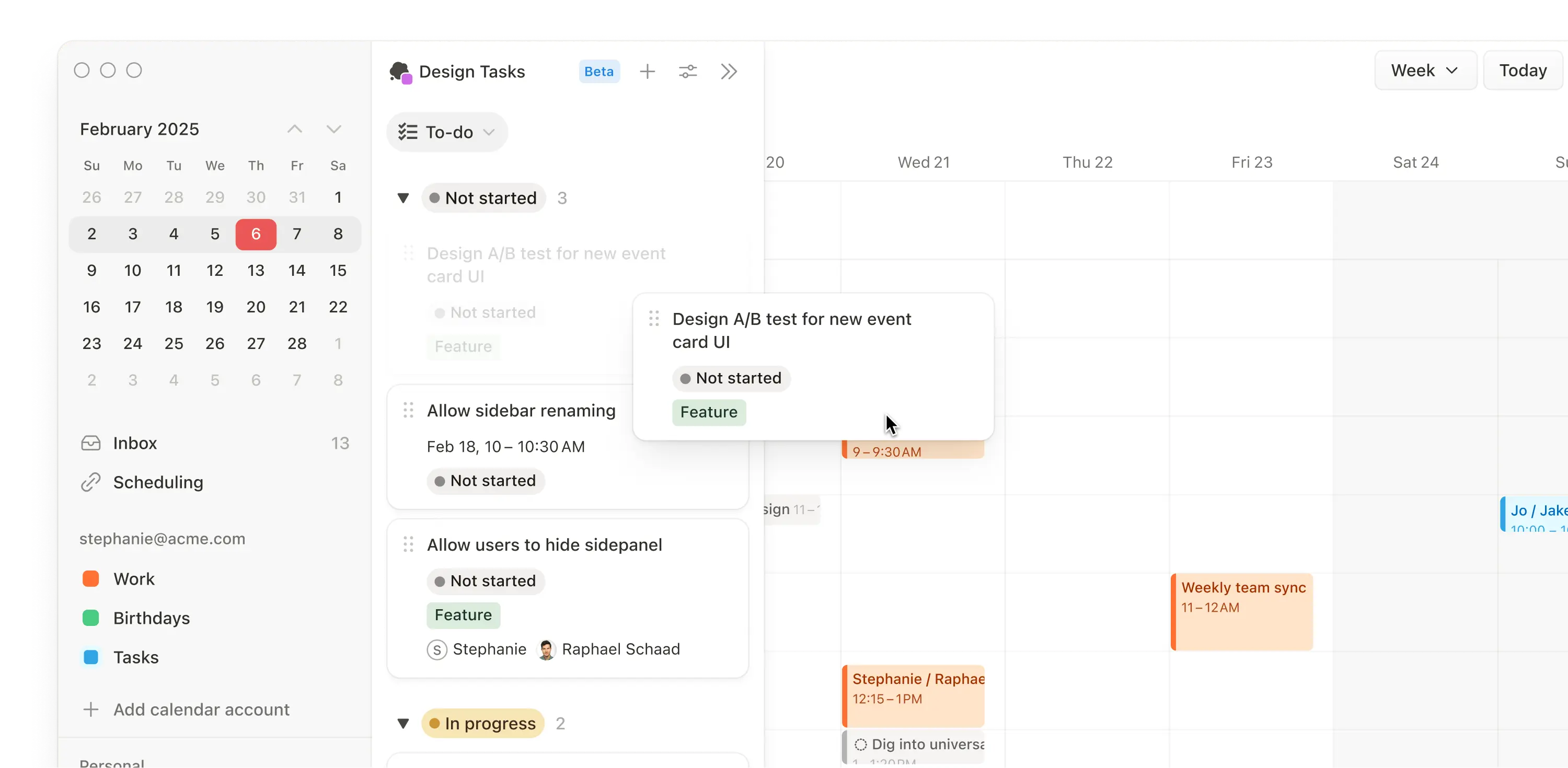
Notion Calendar (formerly Cron) integrates directly with Notion databases, so meetings can link to Notion pages, and tasks in Notion projects can appear on the calendar without duplication. For someone whose workflow runs through Notion, this connection removes the friction of switching between the two. The design is clean and the keyboard shortcut experience is strong.
Outside a Notion workflow, the integration advantage disappears and Notion Calendar becomes a well-designed calendar app with a free tier. No AI, no focus tools, no task system beyond what Notion provides.
Price: Free.
Limitation: Value is heavily dependent on a Notion workflow. No AI, no focus tools.
Apple Calendar
Best for: users who need basic iCloud and Exchange sync and nothing else.
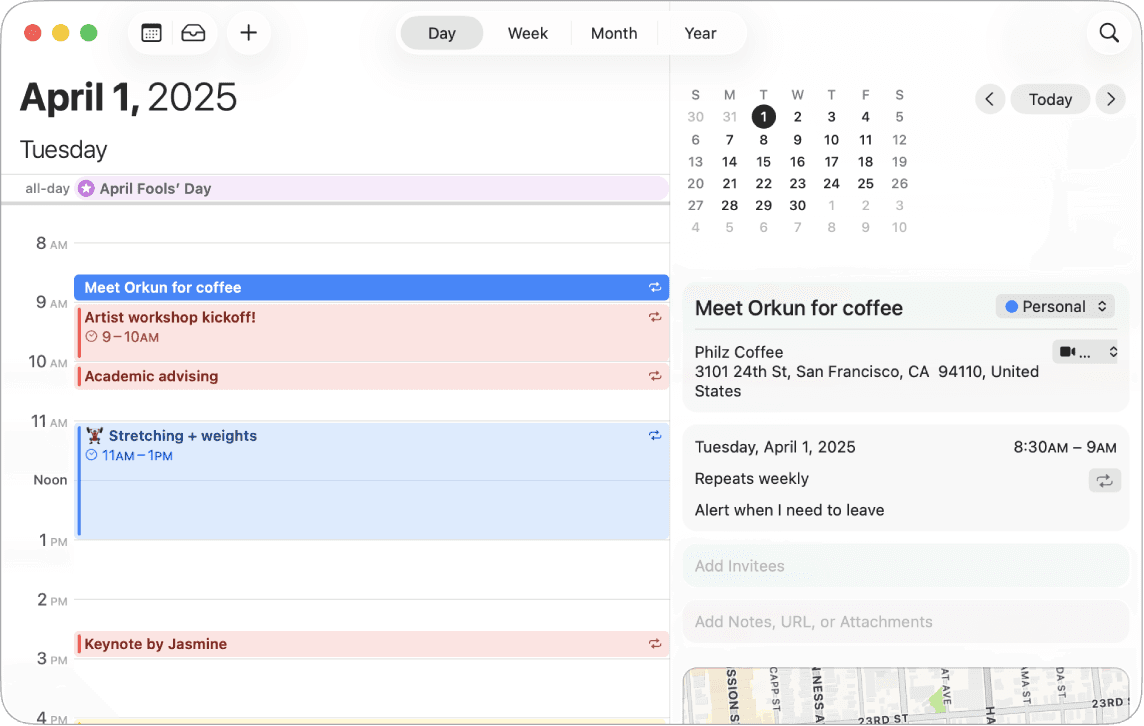
Apple Calendar comes with every Mac and does exactly what it promises. If the requirement is a free calendar that syncs iCloud, Google, Outlook, and Exchange accounts reliably and stays out of the way, this is the right answer. The design has improved and the Shortcuts integration is functional.
It stops well short of anything else on this list. No AI, no task management, no focus tools, no view flexibility beyond the standard day/week/month options. The ceiling is low and clearly marked.
Price: Free.
Limitation: No AI, no tasks, no customisation. The baseline.
Which app fits which situation
The category is wide enough that the right answer genuinely depends on what's missing in your current setup.
If the calendar view is the problem and you want better design, natural language input, and a premium feel: Fantastical.
If you're managing multiple accounts across Google, Outlook, and iCloud simultaneously and the switching friction is the issue: Morgen.
If you want deep calendar customisation without an ongoing subscription and the power features justify the density: BusyCal.
If your workflow runs through Notion and you want the calendar connected to it: Notion Calendar.
If you want the calendar to be the foundation of a productivity system that manages tasks, protects focus, and tells you what the week's structure is actually producing: Aftertone.
The distinction worth holding is between apps that do more with the calendar and apps that do more than the calendar. The first group is Fantastical, BusyCal, Morgen. They make scheduling better. The second group, which on Mac is currently Aftertone, turns the calendar into a system that covers the full cycle from planning through execution to review.
By use case
The guides below go deeper for specific situations. Each one covers the same app landscape through a different lens: which tools matter most for that type of user, what to prioritise in the evaluation, and what most guides in the category miss.
By audience
Best Mac Calendar Apps for Freelancers (2026) The apps that handle client work, time tracking, and billing overhead alongside scheduling. The freelancer evaluation is different: you need the calendar to work across client accounts, and the cost calculation includes the opportunity cost of admin time.
Best Mac Calendar Apps for Entrepreneurs (2026) Founders split between building, selling, and operating. The calendar app that helps with deep work protection matters more than one that's good at scheduling.
Best Mac Calendar Apps for Remote Workers (2026) Multi-timezone support, async meeting tools, and visibility into team availability. The remote worker's calendar problem is partly a coordination problem.
Best Mac Calendar Apps for Developers (2026) Keyboard-first operation, API access, Shortcuts integration. Developers have specific requirements for how a calendar app behaves and which ones meet them.
Best Mac Calendar Apps for ADHD (2026) Visual clarity, flexible scheduling, and tools that accommodate time blindness and transition difficulty. The ADHD calendar evaluation is fundamentally different from the standard one.
Best Mac Calendar Apps for Students (2026) Free or low-cost tools that handle assignment deadlines alongside a personal calendar. The student use case is price-sensitive and the requirements are more straightforward.
Best Mac Calendar Apps for Solopreneurs (2026) Solopreneurs run everything alone. The calendar app needs to pull double duty as a project management layer and a scheduling tool.
Best Mac Calendar Apps for Meeting-Heavy Schedules (2026) Protecting deep work in a week that's mostly meetings. The challenge isn't finding meeting tools. It's finding the space that isn't meetings.
Best Mac Calendar Apps for Small Business (2026) Team coordination, shared calendars, and the apps that scale from solo to a small team without requiring a full enterprise stack.
Best Mac Calendar Apps for Designers (2026) Design-quality interfaces and tools that protect creative blocks. Designers tend to care about visual design quality in their tools, which filters the category significantly.
By feature
Best Mac Calendar Apps With AI (2026) The AI feature landscape in Mac calendar apps, separated by what the AI actually does: scheduling suggestions, natural language input, or behavioural analysis.
Best Mac Calendar Apps With Task Management (2026) Apps that combine calendar and task management in a single interface. The evaluation covers how well the task layer integrates with the calendar rather than treating them as separate modules.
Best Mac Calendar Apps for Time Blocking (2026) Time blocking requires more from a calendar app than event display. The apps that support it properly and the ones that just let you create blocks without helping you work inside them.
Best Mac Calendar Apps for Deep Work (2026) Protecting extended focus blocks and creating an execution environment that supports concentration. The calendar app is part of a deep work system, not just a scheduler.
Best Mac Calendar Apps for Weekly Review (2026) Apps that support the weekly planning ritual with data, not just a view. The weekly review is where productivity systems succeed or fail, and most calendar apps offer nothing for it.
Best Mac Calendar Apps That Sync With Google Calendar (2026) Google Calendar sync depth varies significantly across Mac apps. Two-way sync, reliability, and which features work across the sync boundary.
Best Mac Calendar Apps Without a Subscription (2026) The one-time purchase options on Mac, what they offer, and the honest five-year cost comparison against subscription tools.
Best Free Mac Calendar Apps (2026) The genuinely free options, separated from freemium tools that limit what matters behind a paywall.
How to choose
Start with the question that's most honest about your situation.
If you're spending time in calendar management that feels like overhead and you want less of it, a better calendar view (Fantastical, Morgen) addresses that.
If your calendar is full but the important work isn't getting done, a better calendar view doesn't help. The problem is execution, not scheduling. The tools that address that are the ones built around focus protection and review.
If you're evaluating on cost alone, Apple Calendar is free and BusyCal is a one-time purchase. The question is what the cost of not having the missing features actually is over a year.
The guides above go deeper for each type of user. If you're not sure which one applies to your situation, the audience guides are the right starting point.
FAQs
What is the best Mac calendar app in 2026?
Depends on what you need from it. If you want the best pure calendar view on Mac, Fantastical is the strongest option. If you're managing multiple Google, Outlook, and iCloud accounts simultaneously, Morgen handles the combined view well. If you want deep calendar customisation without an ongoing subscription, BusyCal is the right call. If you want a calendar that also manages tasks, protects focus during scheduled blocks, and analyses how your week went, Aftertone is the only Mac app that covers all three.
What is the difference between a calendar app and a productivity system?
A calendar app shows your events. A productivity system built on top of a calendar also manages your tasks, protects your focus when a scheduled block arrives, and gives you insight into whether the week's structure is producing results. Fantastical is the best calendar view on Mac. Aftertone is the clearest example of the second thing. They're answering different questions, and knowing which question you have is the fastest way to pick the right tool.
Is Fantastical worth the subscription?
If the calendar view is what you're buying, yes. Natural language event creation, calendar sets, and the design quality are genuinely better than the free alternatives. If you also need task management, focus tools, or any analysis of how your time is being used, Fantastical stops short and you'll be managing those elsewhere regardless.
What is the difference between native Mac apps and Electron-based ones?
Mac-native apps use Apple's frameworks throughout, which means they support Spotlight, widgets, keyboard shortcuts, system notifications, and Shortcuts automations consistently. Electron-wrapped apps are web apps packaged for desktop. They work, but keyboard shortcut behaviour is inconsistent, system integrations are limited, and on lower-powered Macs the performance difference is noticeable. Aftertone, Fantastical, BusyCal, and Apple Calendar are all native. Morgen is Electron-based.
Does Aftertone replace Google Calendar?
No. Aftertone syncs two-way with Google Calendar so everything you already have there appears automatically. Google Calendar stays for shared scheduling and external meetings. Aftertone is the layer where you plan and execute your own work. The two sit alongside each other.
Which Mac calendar app is best for time blocking?
Aftertone is built around time blocking as the primary interaction. Tasks go from the inbox into calendar slots, the Focus Screen activates when the block starts, and the weekly report tracks how those blocks translated into actual focused work. Other apps on this list let you create calendar blocks but don't help you work inside them or tell you how they went. There's a difference between supporting time blocking as a feature and building the full workflow around it.
Which Mac calendar app has the best AI?
Depends what you mean by AI. Fantastical uses AI for natural language event creation. Morgen uses AI to suggest slots for tasks based on calendar availability. Aftertone uses AI to read your calendar history and tell you what patterns are producing your best work. These are different uses of the technology. Scheduling suggestions save you the click of finding an open slot. Behavioural analysis tells you whether your current structure is working and what to change.