The Best Mac Apps To Install After WWDC 2026.
Apple announced macOS 27 Golden Gate at WWDC this week. It ships this autumn and it's the first version of macOS that requires Apple silicon — Intel Macs reach the end of the road when it lands. The keynote also brought a redesigned Siri, deeper Apple Intelligence integration across the system, and changes to App Store search behaviour that developers are already scrambling to understand.
This produces the same effect it does every year. Developers ship updates, discover new APIs, and useful software appears in the weeks that follow. The right time to refresh your Mac setup is now, while the momentum is there.
The apps below are what's worth adding. None paid to be here.

1. Aftertone — planning, focus, and weekly review in one native Mac app
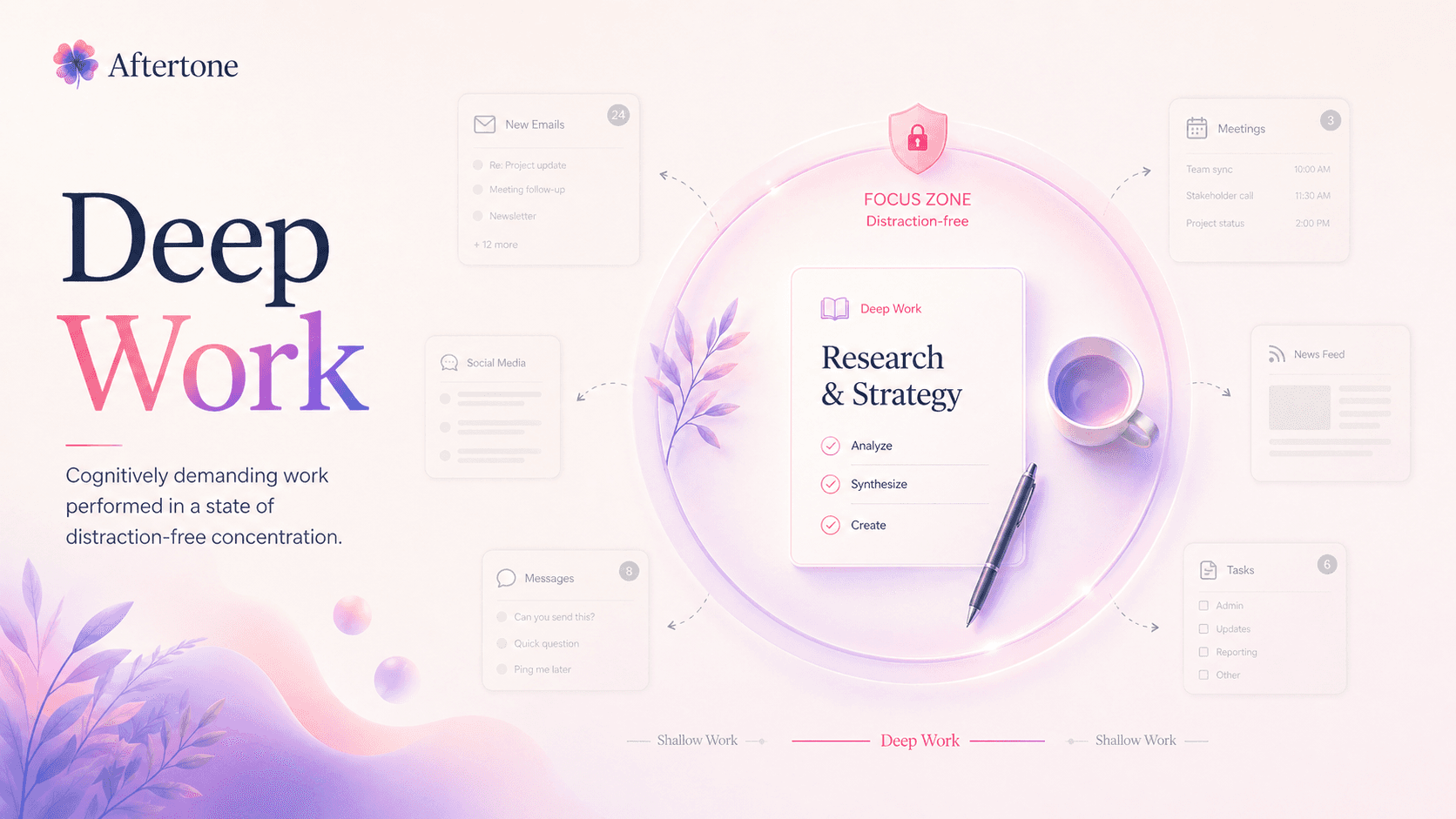
Best for: Mac users who want to plan their week, execute without distraction, and understand at the end of it whether it actually worked, without juggling three separate tools to do that.
RescueTime tracked 185 million working hours and found the average knowledge worker gets under three hours of genuinely focused work done per day. Most apps address this by adding structure around the edges: a timer here, a task manager there, a calendar that doesn't know about either of them.
Aftertone handles all three inside a single native Mac app. Your tasks and your calendar are the same view. Deep work blocks sit alongside real meetings, not in a separate planning tool you have to reconcile every morning. When a focus session starts, the Focus Screen narrows the interface to the current task and removes everything else from view. The AI weekly report tells you whether the protected time is producing results: flow hours, peak day, a full timeline of when real work happened and when it didn't.
Most users have a sharp moment with the first weekly report. You see exactly where your time went and it's rarely what you expected.
What it does well:
Task management and time blocking in a single calendar view
Focus Screen removes all competing visual demands when a session begins
AI weekly and daily reports surface patterns in how you actually work — the science is in Aftertone's research on self-monitoring
Auto Capture converts pasted text or a screenshot into structured tasks instantly
Keyboard-first, most actions never need the mouse
Auto Plan schedules your day before it fills up
Honest limitations:
Mac only. iOS is on the roadmap, not yet available.
No system-level website blocking. Pair with Freedom if you need that layer.
Not the right answer for team scheduling or collaboration.
Pricing: $30/month. Free trial, no card required.
Platforms: Mac.
2. Superhuman — email for people who spend their day in their inbox
Best for: Anyone who handles significant email volume and finds the time cost of managing it genuinely painful.
Superhuman is an email client that costs $30/month and is almost impossible to justify to someone who hasn't tried it. The people who use it will not shut up about it. The people who haven't tried it think those people are being foolish about email software. Both groups are right, depending on how much of your day lives in your inbox.
What Superhuman does is make email fast. Every action has a keyboard shortcut. The read/unread state is managed deliberately. The AI drafts replies that sound like you. Remind Me brings emails back at a specific time — which sounds trivial and turns out to be the reason people don't cancel. It works with Gmail and Outlook across Mac, Windows, iOS, and Android.
One thing worth knowing: Grammarly acquired Superhuman in July 2025. The acquisition has not visibly changed the product yet, but this is no longer an independent company. Worth factoring in if independence matters to you in the tools you rely on daily.
What it does well:
Genuinely the fastest email experience available on Mac
AI drafts that don't sound like AI wrote them
Remind Me turns email into a reliable to-do system
Works with both Gmail and Outlook
Keyboard shortcuts for everything
Honest limitations:
$30/month is hard to justify if email isn't a significant time cost for you
No longer independently owned
Starter plan limits some features; full experience requires Business tier
Pricing: $30/month Starter. $40/month Business.
Platforms: Mac, Windows, iOS, Android, Web.
3. Linear — issue tracking that doesn't make you want to leave
Best for: Software teams who've accepted that Jira is the way things are done and haven't tried the alternative.
Linear is a project and issue tracker built by people who cared about how it felt to use. Everything loads fast — the company has made sub-100ms performance a stated design principle, not a marketing claim. The keyboard shortcuts work. The defaults are sensible rather than neutral. The design has opinions about how product development should be structured — cycles, triage, projects — and enforces them quietly rather than making you configure your way to them.
The reason teams switch from Jira is usually that someone opens Linear for the first time and notices they didn't sigh. The free tier supports unlimited members with up to 250 active issues, which covers most small teams indefinitely.
What it does well:
Keyboard-driven throughout, everything has a shortcut
Sub-100ms performance — noticeably faster than anything in the same category
Cycles and triage built in as first-class concepts
Clean iOS and Android apps that are actually good
Free tier is genuinely usable for small teams
Honest limitations:
Per-user pricing adds up for larger teams
Opinionated workflows mean less flexibility than Jira for non-standard processes
Not the right tool for non-engineering project management
Pricing: Free tier (250 active issues). Paid from $8/user/month.
Platforms: Mac, Windows, Web, iOS, Android.
4. Dia — a browser with AI built into everythinG
Best for: Mac users on Apple silicon who want AI assistance woven into their browsing rather than bolted on via an extension.
Dia is the successor to Arc, built by The Browser Company, which was acquired by Atlassian for $610M in late 2025. Where Arc was for people who wanted to rebuild how they used the web entirely, Dia takes a different approach: cleaner than Arc, closer to Chrome or Safari in structure, with AI running through every part of it. Writing assistance in every text field. A built-in sidebar for research and summarisation. Reusable prompts for repeated tasks.
It's currently free. A Pro tier at $20/month removes usage limits on AI features.
One honest caveat: The Browser Company stopped building new features for Arc in May 2025 to redirect everything to Dia. Anyone who built a system in Arc knows how that felt. Whether Atlassian changes Dia's trajectory the same way remains an open question — it's worth going in with eyes open.
What it does well:
AI assistance in every text field without copy-pasting to a separate tool
Clean, fast interface — much lighter than Arc
Reusable prompts for repeated research tasks
Free to use at a meaningful level
Honest limitations:
Apple silicon only — no Intel Mac support, no Windows
The Browser Company has a history of pivoting away from its previous product
Now owned by Atlassian, not independent
Pricing: Free. Pro $20/month.
Platforms: Mac (Apple silicon only).
5. CleanShot X — screenshots and screen recording that actually work
Best for: Anyone who takes screenshots or records their screen regularly and has reached the limit of what the built-in Mac tools can do.
CleanShot X replaces the macOS screenshot tool entirely. Capture a region, a window, or the full screen — the editor opens immediately with annotation tools that feel native. Arrows, blur, highlights, numbered steps. OCR text extraction pulls readable text from anything visible on screen. Scrolling capture grabs a full webpage in one go. Screen recording exports as video or GIF.
The Quick Access Overlay is the feature you don't know you want until you have it: recent captures float in the corner of your screen, available to annotate or share without losing what you were doing. At $29 it's a one-time purchase that earns its price within a week.
What it does well:
Annotation editor opens instantly after capture, no context switch
OCR extracts text from anything on screen — error messages, mockups, videos
Scrolling capture for long pages and documents
Quick Access Overlay for working with recent captures without interruption
Exports as video, GIF, or image
Honest limitations:
Optional cloud storage for shareable links costs $8/month extra
No Windows version
Pricing: $29 one-time. Cloud storage optional at $8/month.
Platforms: Mac.
6. Raycast — the launcher that replaced half the menu bar
Best for: Anyone who wants keyboard-first access to everything on their Mac without opening individual apps.
Raycast starts as a Spotlight replacement and becomes considerably more useful over time. Open it and from there you can search files, launch apps, check your calendar, create GitHub issues, control Spotify, manage snippets, and run any of several hundred community-built extensions. The extension store in the weeks following WWDC will gain new entries built against Golden Gate's APIs — worth checking regularly through July.
What it does well:
Replaces Spotlight and most menu bar utilities in one interface
Large, actively maintained extension ecosystem
Clipboard History, Window Management, and Snippets are all genuinely well built
Free for the vast majority of use cases
Honest limitations:
AI features and Cloud Sync require Pro at $8/month billed annually
Extension quality varies; some go unmaintained
Pricing: Free. Pro $8/month billed annually.
Platforms: Mac. Windows in public beta.
7. Alfred — the launcher with fifteen years of depth behind it
Best for: Anyone who has outgrown Spotlight and wants keyboard-driven access to their Mac with workflow automation that Raycast doesn't match.
Alfred has been around since 2010 and has spent most of that time being recommended by people who care about their Mac setup. The base app is free. The Powerpack (£34 single licence, £59 lifetime upgrades) unlocks Clipboard History, Snippets, custom web searches, and Workflows — where Alfred becomes something different from Raycast entirely.
Workflows let you chain actions: search a term, run a script, open a file, call an API, paste text into whatever's in focus. The community has built thousands of them. Raycast and Alfred are not the same product despite appearing similar from the outside. Raycast is the modern default; Alfred is what people who've been doing this for a decade tend to stay on.
What it does well:
Workflow system is more powerful than Raycast for complex automation
Clipboard History goes back as far as you configure it
Snippets expand abbreviations system-wide
Downloaded directly from alfredapp.com, no App Store dependency
Honest limitations:
Interface design hasn't changed much in years
Powerpack is priced in GBP, which surprises US buyers
Raycast's extension ecosystem is larger and growing faster
Pricing: Free. Powerpack £34 single licence or £59 lifetime upgrades.
Platforms: Mac.
8. BetterTouchTool — remap everything your trackpad and keyboard does
Best for: Anyone who wants custom trackpad gestures, proper window snapping, or keyboard shortcuts that do something useful.
BetterTouchTool is built by Andreas Hegenberg, a solo developer who has shipped updates for over a decade. The core use is trackpad gestures: a three-finger swipe left closes a browser tab, a four-finger tap pastes text and runs a Shortcut, a two-finger click on the menu bar opens a specific app. These become invisible within a week and using a Mac without them feels noticeably slower.
The configuration goes well past gestures: window snapping with precision, Touch Bar customisation, keyboard shortcut sequences, menu bar widgets, and automation chains that approach Keyboard Maestro territory.
What it does well:
Custom trackpad gestures per app or globally
Window snapping with precise control over snap zones
Keyboard shortcut sequences and automation
Actively maintained by a solo developer who ships frequently
Honest limitations:
Configuration UI is dense and takes time to learn properly
Easy to end up with conflicting shortcuts if you set too many at once
Pricing: $12 standard licence or $24 lifetime upgrades.
Platforms: Mac.
9. Hazel — your Mac filing things for you
Best for: Anyone whose Downloads folder is a recurring embarrassment, or anyone who manually moves or sorts files more than once a week.
Hazel watches the folders you tell it to watch and applies rules you define. PDFs with a client name in the filename move to the right project folder. Screenshots older than two weeks go to an archive. Installer files you haven't opened in 30 days get trashed. You set the rules once and forget they exist.
The app has been around since 2006 and has resisted every pressure to become a platform, add AI features, or move to a subscription. It runs as a System Preferences pane, sits in the background, and files things. That's the whole product, seventeen years later.
What it does well:
Rule-based automation for any folder on your Mac
Renames, moves, tags, archives, or deletes based on filename, date, content, type
Can chain with other apps — import a PDF and Hazel files it; open a DMG and Hazel trashes it after install
One-time purchase
Honest limitations:
Requires an afternoon of upfront setup to build rules worth having
A badly written rule can move things you didn't intend — test carefully
Pricing: $42 one-time.
Platforms: Mac.
10. Soulver 3 — a calculator that keeps the working
Best for: Anyone who does back-of-envelope calculations and keeps losing the working — or scattering it across Notes, Messages threads, and spreadsheet cells nobody can decode later.
Soulver is a notepad where every line that contains a number gets calculated. You type "£2,400 rent + £180 utilities + £60 subscriptions" and it totals them. You write "salary = £65,000" on one line and reference it on the next. You type "March 12 + 6 weeks" and get a date back. Unit conversions, time zone maths, percentages, compound interest — all in plain English, all in a document you can save, share, or export.
The key thing it does differently from a calculator or a spreadsheet: the working stays visible. You're not decoding a cell formula three weeks later.
What it does well:
Natural language maths across 300+ units and conversions
Variables reference earlier lines like a lightweight spreadsheet
QuickSoulver gives system-wide access from a keyboard shortcut
30-day free trial with no limitations
Honest limitations:
$39 is a real price for a calculator app — takes some justification
Not a replacement for a spreadsheet on anything complex
Pricing: $39 one-time. 30-day trial, no limitations.
Platforms: Mac, iPad, iPhone.
11. Mimestream — a native Mac email client for Gmail
Best for: Mac users on Gmail or Google Workspace who are tired of reading email in a browser tab.
Mimestream was built by Neil Jhaveri, a former Apple Mail engineer. It uses the Gmail API directly rather than IMAP, which means labels, filters, categories, and search all work exactly as they do in Gmail — but inside a native Mac app that launches in under a second, respects your Focus modes, and handles attachments the way every Mac app should. Drag and drop works. Quick Look works. Handoff works across Mac and iPhone.
If you check Gmail thirty times a day in a browser tab, you're paying for that app's weight in RAM every time you do it. Mimestream removes that cost.
What it does well:
Built in SwiftUI, genuinely fast on Apple silicon
Full Gmail label, filter, and category support via the Gmail API
Deep macOS integration — Focus modes, notifications, Share Sheet, Handoff
Multiple Google accounts in one window
Honest limitations:
Gmail and Google Workspace only — no exceptions, no roadmap to change this
$49.99/year is a real annual cost for an email client
No Windows or Android companion
Pricing: $4.99/month or $49.99/year. 14-day free trial.
Platforms: Mac.
12. Reeder — RSS without the algorithm
Best for: Anyone who wants to read the web on their own terms.
Reeder is an RSS reader by Silvio Rizzi, and it has been the best-designed one on Mac for the better part of a decade. The current version is updated for macOS Golden Gate with a Liquid Glass interface option. Reeder Classic (previously Reeder 5) remains available as a one-time purchase if you'd rather avoid the subscription.
The value of RSS in 2026 is specific: you subscribe to the sources you want, they appear in the order they were published, nothing is weighted by engagement. If you find social media feeds increasingly exhausting and just want to read the writing you've chosen to follow, this is the tool.
What it does well:
Clean reading interface that gets out of the way
iCloud sync across Mac, iPhone, and iPad
Bionic Reading support
Supports every major RSS sync service: Feedbin, Feedly, NewsBlur, Inoreader
Honest limitations:
Only useful if you actively want to build a reading habit. It won't create one.
New version is a subscription; Reeder Classic is the one-time purchase alternative
Pricing: Reeder: subscription. Reeder Classic: one-time purchase.
Platforms: Mac, iPhone, iPad.
13. Bezel — your iPhone on your Mac
Best for: Developers and designers who need to demo, record, or review iOS apps without holding a phone up to a camera.
Bezel mirrors your iPhone onto your Mac over USB or AirPlay, inside a device frame that matches the exact model and colour. Free version works with a watermark. Pro ($29/year or $9/month) removes it and adds screen recording with the bezel intact, audio mirroring, full-screen mode, and support for multiple devices simultaneously.
macOS has had native iPhone mirroring since Sequoia, which covers basic use cases for free. Bezel is for when the device framing and recording tools matter.
What it does well:
Mirrors any iPhone or iPad over USB or AirPlay
Auto-matches the correct device bezel and colour
Screen recording with transparent or custom backdrop
Supports multiple devices at once
Honest limitations:
Free version has a persistent watermark
macOS native mirroring covers the basic use case since Sequoia
Pricing: Free with watermark. Pro $29/year or $9/month.
Platforms: Mac.
14. Monodraw — ASCII diagrams that live in your codebase
Best for: Developers and technical writers who need diagrams that sit inside code, READMEs, or documentation without an image file that eventually drifts out of sync.
Monodraw creates diagrams, flow charts, data structure visualisations, and ER diagrams entirely in plain text. Because the output is ASCII, it goes anywhere text goes: in a code comment, in a README on GitHub, in a terminal output. No PNG exports, no broken image links, no file to maintain separately from the code.
It handles more than you'd expect: FIGlet text banners with 148 bundled fonts, ER diagrams with Crows Foot notation, connection lines between shapes, an infinite canvas. The output looks considered rather than cobbled together, which is the hard part of ASCII art.
What it does well:
Output is plain text and embeds anywhere
ER diagrams, flow charts, data structure visualisations
148 bundled FIGlet fonts for text banners
One-time purchase
Honest limitations:
Niche use case — only valuable if you produce technical documentation regularly
Mac App Store version at $9.99 has some sandbox restrictions; direct purchase has more features
Pricing: $9.99 on the Mac App Store.
Platforms: Mac.
15. Monocle — dims everything except the window you're working in
Best for: Anyone who finds the visual noise of multiple open windows a genuine distraction during long writing or coding sessions.
Monocle blurs everything on screen except your active window. When you switch windows, the blur follows. It's a simple idea and the implementation is clean enough that you stop noticing it after a few minutes — it just becomes part of how the screen feels. HazeOver does something similar; Monocle is cheaper and more recent.
What it does well:
Follows your active window as you switch
Adjustable intensity
Lightweight, one-time purchase
Honest limitations:
If background windows don't currently pull your eye, you won't notice the difference
No trial; low enough price to be worth the gamble
Pricing: $4–$9 one-time.
Platforms: Mac.
16. Bauhaus Clock — a screensaver worth looking at
Best for: Anyone who finds the default Mac screensaver an embarrassment.
Bauhaus Clock is a screensaver built around mechanical clock faces in the Bauhaus design tradition: geometric, spare, precise. Multiple customisable dials, full resolution rendering on Retina and Studio Display, and physical movement animation with the kind of craft that makes you stop and look rather than dismiss it.
Jeff Sheldon of Ugmonk called it "one of those small details that just makes me happy." Chris Messina, who invented the hashtag, called it "absolutely stunning." At $19 with lifetime updates it's the cheapest thing on this list that will change how your desk feels.
What it does well:
Genuinely beautiful mechanical clock animation
Multiple dial styles, all customisable
Full resolution on Retina and Studio Display
Also available as an iPhone and iPad app
Honest limitations:
If your screen is always on and you never see your screensaver, skip it.
Pricing: $19 one-time, lifetime updates.
Platforms: Mac, iPhone, iPad.
17. Tot — for the thinking that isn't a task yet
Best for: Anyone who loses half-formed ideas because Notion takes too long to open and Notes feels too permanent.
Tot is seven colour-coded dots in your menu bar. Click one and a small text field opens. It's a scratchpad, not a notes app — seven spaces for text that needs to exist while you're thinking. The URL you'll need in an hour. The sentence you want to hold onto. The thing someone just said in a meeting.
Opening Notes for this takes four seconds and involves a document hierarchy. Tot opens before you finish the thought. Made by Iconfactory. Mac app is free. iOS is a separate $20 purchase.
What it does well:
Opens instantly from the menu bar
iCloud sync across Mac, iPhone, iPad, and Apple Watch
Markdown support
Free on Mac
Honest limitations:
Seven spaces is the hard limit
No search across spaces
The iOS app being a separate $20 purchase surprises most people
Pricing: Free on Mac. iOS $20 one-time.
Platforms: Mac, iPhone, iPad, Apple Watch.
18. Hand Mirror — one click before every call
Best for: Anyone who has started a video call and immediately wished they'd checked first.
Hand Mirror puts a camera preview in your menu bar. Click it, see what your webcam sees, close it. The alternative is opening Photo Booth and waiting, or starting a FaceTime just to check your framing. Hand Mirror is faster than both. Free, with a $5.99 upgrade to Hand Mirror Plus for mic level checking, a resizable window, and custom positions.
What it does well:
Instant preview, no loading time
Doesn't record or transmit any data
Plus adds mic level checking, which is genuinely useful
Honest limitations:
It's a camera preview in your menu bar. If you want more, this isn't it.
Pricing: Free. Hand Mirror Plus $5.99 one-time.
Platforms: Mac.
19. Permute 3 — local file conversion without the browser
Best for: Anyone who converts video, audio, or image files regularly and would rather not upload them to a website to do it.
Drag a file in, select the target format, done. Video, audio, and image conversion locally, fast, offline. Batch conversion works. $14.99 one-time purchase you'll use for years and rarely think about until you need it.
What it does well:
Local conversion, no upload
Video, audio, and image formats covered
Batch processing
Honest limitations:
Advanced encoding options are limited compared to Handbrake (which is free)
Pricing: $14.99 one-time.
Platforms: Mac.
20. PDF Squeezer 4 — smaller PDFs in two clicks
Best for: Anyone who sends large PDFs to clients or services with attachment limits.
Drag a PDF in, get a smaller one out. Set the compression level, compare against the original before saving, batch-process a folder. Processes locally, been the most popular PDF compression app for Mac for years.
What it does well:
Local compression, nothing uploaded
Side-by-side comparison before saving
Batch processing and Shortcuts integration
Honest limitations:
Compression only. No editing, OCR, or anything else.
Pricing: $19.99 one-time.
Platforms: Mac.
21. Lungo — keeps your Mac awake when it needs to stay awake
Best for: Anyone running presentations, long exports, or recordings who keeps having to nudge the mouse to stop the display sleeping.
Click the menu bar icon, choose a duration, done. Rules let you stay awake only when on power, or only when a specific app is running. Made by Sindre Sorhus. Free.
What it does well:
Instant activation from the menu bar
Rule-based activation by power source or running app
Scheduled activation and deactivation
Honest limitations:
There is no other feature. That's the point.
Pricing: Free.
Platforms: Mac.
22. Keewordz — App Store keyword tracking for developers
Best for: Any developer with a Mac or iOS App Store app who wants to know whether metadata changes are working.
Keewordz tracks where your app ranks for specific App Store search terms and how that changes over time. Without it, you're making metadata changes blind. Particularly relevant right now: Golden Gate changes App Store search behaviour. Developers tracking their keyword positions in the weeks after the announcement will spot algorithm shifts before they lose ground.
What it does well:
Keyword ranking tracking with historical data
Supports Mac App Store and iOS App Store
Competitor keyword analysis
Honest limitations:
Only relevant if you ship on the App Store
Check the Mac App Store listing for current pricing
Pricing: Available on the Mac App Store.
Platforms: Mac.
Honorable Mentions
Rectangle — Free, open source window manager. Keyboard shortcuts to snap windows to halves, thirds, corners, and fullscreen. If you've never used a window manager, start here. Rectangle Pro ($9.99) adds cursor gestures and snap areas.
Maccy — Free clipboard manager. Every piece of text you've copied, searchable, one keyboard shortcut away. The problem you didn't know you had until you fix it.
Velja — Free browser picker by Sindre Sorhus. Click a link, choose which browser opens it — or set rules: work links go to Chrome, personal links to Safari, Zoom links open directly in Zoom. Useful immediately if you split browsing between contexts.
Proxyman — Network debugging proxy for Mac. Intercept and inspect HTTP/HTTPS traffic from your Mac, iOS simulator, and physical devices. The standard tool for any developer who needs to see what their app is actually sending. Perpetual licence with one year of updates.
FAQs
What is macOS Golden Gate?
macOS Golden Gate is macOS version 27, announced at WWDC on June 8 2026 and shipping this autumn. It's the first version of macOS that requires Apple silicon — Intel Macs are no longer supported when it lands. It brings a redesigned Siri, deeper Apple Intelligence integration across the system, and Liquid Glass design changes.
Is Raycast free?
Yes. The core features — Spotlight replacement, file search, window management, clipboard history, snippets, and all community extensions — are free. The Pro plan at $8/month (billed annually) adds AI features and cloud sync. Most users never need to upgrade.
Should I use Alfred or Raycast?
They're not direct substitutes. Raycast is the modern default: free for most use cases, a large extension ecosystem, actively updated, and now on Windows in public beta. Alfred's Workflow system — unlocked by the Powerpack at £34 or £59 lifetime — is more powerful for complex automation. Start with Raycast. Switch to Alfred if you find yourself needing automation that Raycast can't handle.
What happened to Superhuman — is it still independent?
No. Grammarly acquired Superhuman in July 2025. The product hasn't visibly changed since the acquisition, but it's no longer an independent company. Still one of the best email clients on Mac — worth knowing if independence matters to you in the tools you rely on daily.
Which Mac apps are worth paying for in 2026?
For one-time purchases: CleanShot X ($29) for screenshots, BetterTouchTool ($24 lifetime) for trackpad gestures and window snapping, Hazel ($42) for automated file management, Soulver 3 ($39) for natural language calculations. For subscriptions: Superhuman ($30/month) if email is a significant time cost, Linear (free tier, $8/user/month paid) for software teams replacing Jira.
What is the best Mac app for focus and deep work?
Aftertone. It combines task management, time blocking, and AI weekly reports in a single native Mac app — your plan and your calendar are the same view, and you can see at the end of each week whether the time you protected was actually used. Free 14-day trial at aftertone.io, no card required.
Does Dia replace Arc?
Dia is the successor to Arc from The Browser Company — they stopped building new features for Arc in May 2025 to redirect everything to Dia. It's cleaner and less opinionated than Arc, with AI built into every part of the browsing experience. Apple silicon only, free to use, with a Pro tier at $20/month for unlimited AI. Whether Atlassian's ownership changes the product's direction over time is the open question.
What free Mac apps are worth installing?
Raycast (launcher and Spotlight replacement), Lungo (stops your Mac sleeping during presentations or exports), Tot (scratchpad in your menu bar), Hand Mirror (camera check before video calls), Rectangle (window manager), Maccy (clipboard history), Velja (browser picker), and Linear for small software teams with up to 250 active issues.